Skip to content
  • PilotDuty – App
  • PilotDuty Manager
  • Resources
    • Features
    • Blog
    • docs
    • FAQ
    • Terms Of Use
    • Privacy Policy
    • Cookie Policy
  • Shop
    • Shop
    • Cart
    • My account
  • Contact

Archives

  • June 2025
  • May 2025
  • March 2025

Categories

  • Application
  • Case Study
  • Technology

How can we help you?

🚀 Getting Started With PilotDuty iOS APP

  • Understanding what does this view mean?
  • Initial configuration (OnBoarding)
  • How to Ensure PilotDuty Has the Required iOS Permissions for Background Flight Tracking

🔧Configurations of the PilotDuty iOS APP

  • Edit Pilot Profile
  • Add a Aircraft
  • Add a Work or Rest Area (PRO)
  • Set the Parking Time Limit
  • Setup of Flight Following
  • Connect to PilotDuty Manager
  • Setup Medical, License and Proficiency Validity (PRO)

👨‍✈️ Use of the PilotDuty iOS app

  • Understanding How the App Handle Event and Flight
  • Manually Adding an Event (Flight / Work / Rest)
  • Manually Adding Flight to an Event
  • Get a Summary of Your Personal Logbook
  • Export My Personal Logbook
  • How to Disapprove a Flight (Event)
  • Interpret duty time information (PRO)
  • Flight Following on PilotDuty Manager
View Categories
  • Home
  • Docs
  • iOS App
  • 🔧Configurations of the PilotDuty iOS APP
  • Setup Medical, License and Proficiency Validity (PRO)

Setup Medical, License and Proficiency Validity (PRO)

1 min read

To allow PilotDuty to calculate the validity of your medical, license, and proficiency check, you need to enter your personal data. Here’s a step-by-step guide:


Step 1: Access the Pilot Status Page #

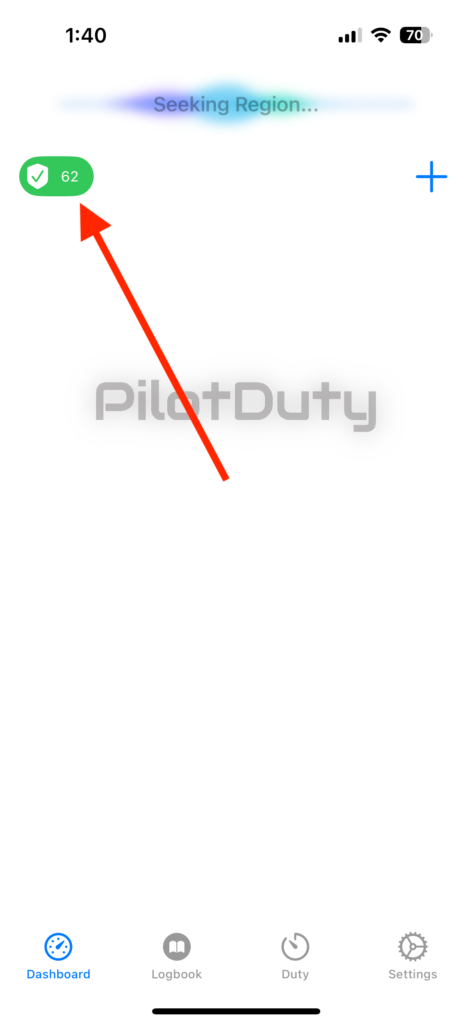
  1. Open the Dashboard tab.
  2. Tap the validity badge in the top-left corner.
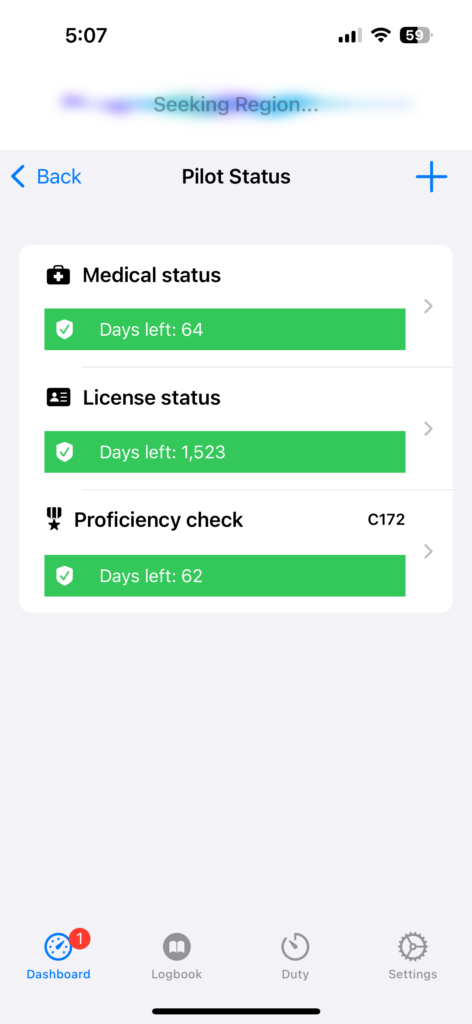
  3. This will open the Pilot Status view.
Setup Medical, License and Proficiency Validity (PRO)

Pilot Status View

pilot Status

Step 2: Enter Your Medical Information #

  1. Under the “Medical status” section, enter the Last Medical Date.
  2. Optional: add Doctor name, Phone number and Address (when this information is fill a phone and navigation button appear)
  3. Optional: You can also upload a picture of your medical certificate.
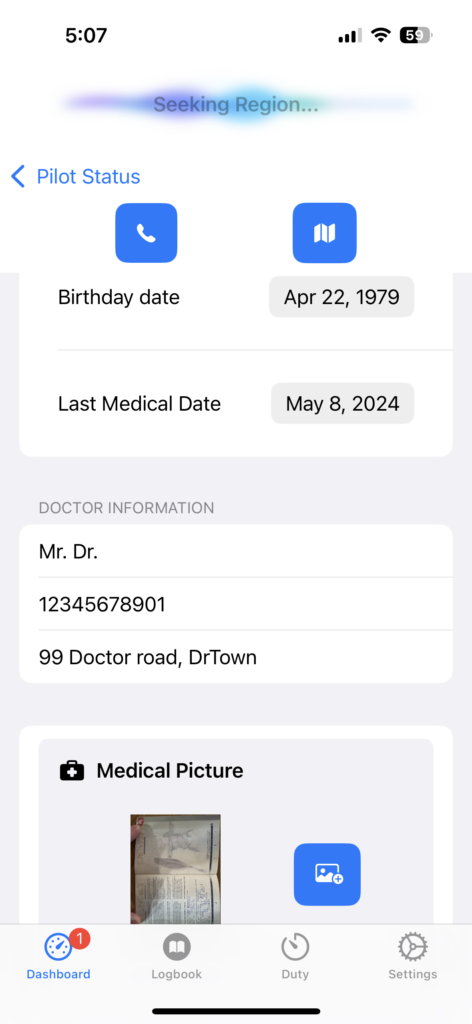
medical Status

Step 3: Enter Your License Information #

  1. Under the “License status” section, tap the box and select the License Expiry Date.
  2. Optional: Upload a photo of your license.
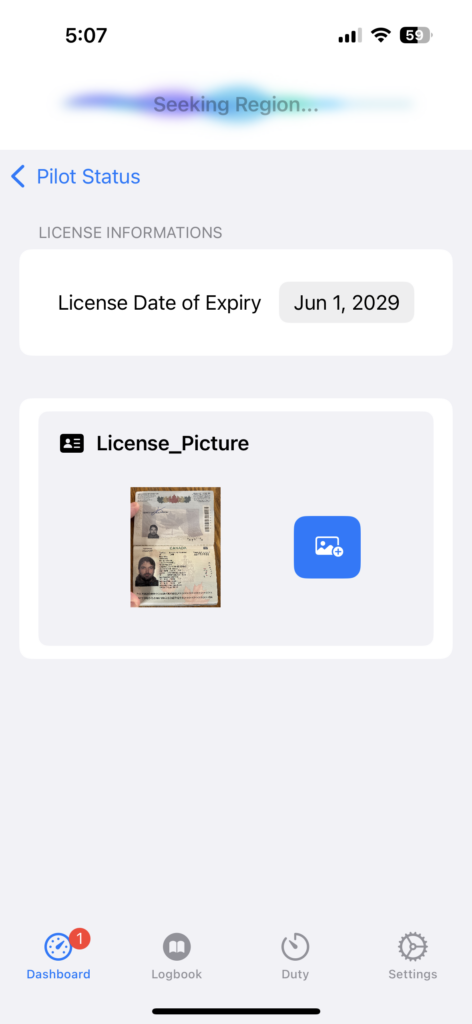
license Status

Step 4: Enter Proficiency Check Details #

  1. Tap the Proficiency Check section.
  2. Enter the following:
    • Validity Start Date
    • Aircraft Type (e.g., C172)
    • Check Type (e.g., PCC, PPC)
    • Validity Period in months (e.g., 12)
    • Optional: Enter instructor name and remarks
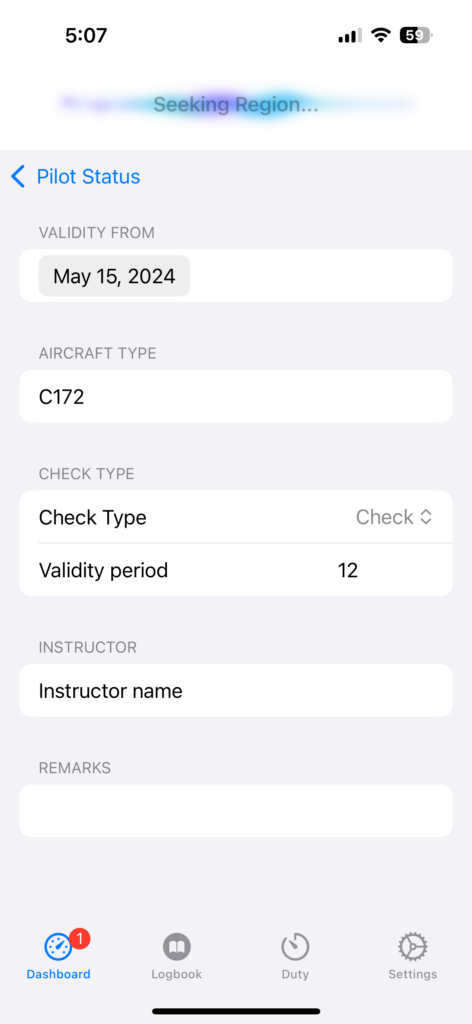
proficiency Check

ℹ️ Info: Once the information is recorded, PilotDuty automatically calculates the number of days remaining before each document expires. The worst-case statuses are updated and displayed as green, orange, or red badges on the dashboard.

What are your Feelings

Share This Article :

  • Facebook
  • LinkedIn
Still stuck? How can we help?

How can we help?

Updated on June 12, 2025
Connect to PilotDuty ManagerEdit Pilot Profile

Leave a Reply Cancel reply

Your email address will not be published. Required fields are marked *

Table of Contents
  • Step 1: Access the Pilot Status Page
  • Step 2: Enter Your Medical Information
  • Step 3: Enter Your License Information
  • Step 4: Enter Proficiency Check Details

ABOUT PilotDuty


PilotDuty® is the only fully automatic flight logbook for general aviation pilots — featuring iBeacon-based flight tracking, SMS flight following, and aircraft maintenance monitoring. Trusted by aviation professionals across North America.

QUICK LINKS

  • PilotDuty – App
  • PilotDuty Manager
  • Contact Us
  • Shop

CONTACT US

Feel free to contact & reach us !

Address : Mascouche, Qc Canada
Email : support@pilotduty.com
Phone : 1 (888) 969-2594

RESOURCES

  • FAQ
  • Docs
  • Blog
  • Terms Of Use
  • Privacy Policy
  • Refund and Returns Policy
  • Cookie Policy
Copyright © 2026 PilotDuty. Powered by M2D3V