
Introduction #
Connecting to an organization allows PilotDuty to share your duty and flight tracking events with your team. This is especially useful for operators who want real-time monitoring of flight activities using PilotDuty Manager, or for aircraft owners and groups who want to track flight time for maintenance purposes.
Step 1 — Access PilotDuty Manager #
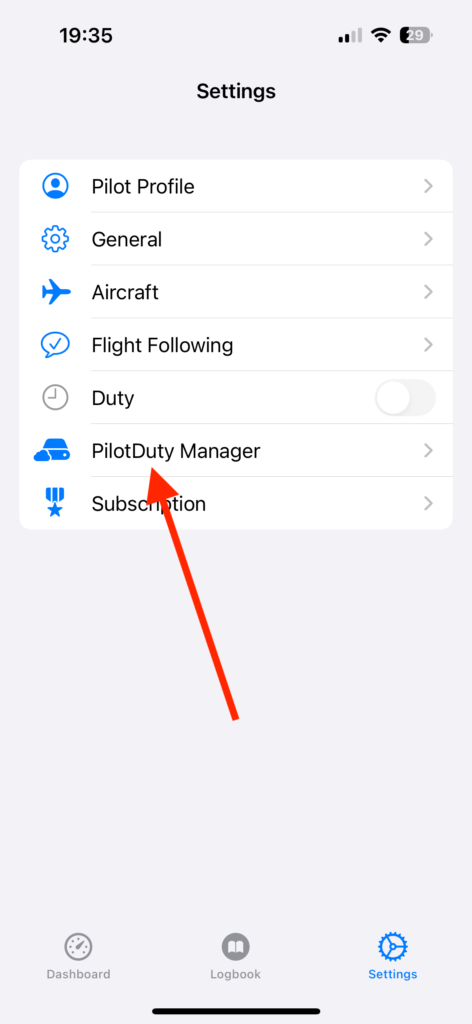
Open the app and go to:
- Settings (bottom right)
- Tap on PilotDuty Manager
Step 2 — Sign in to PilotDuty Manager #
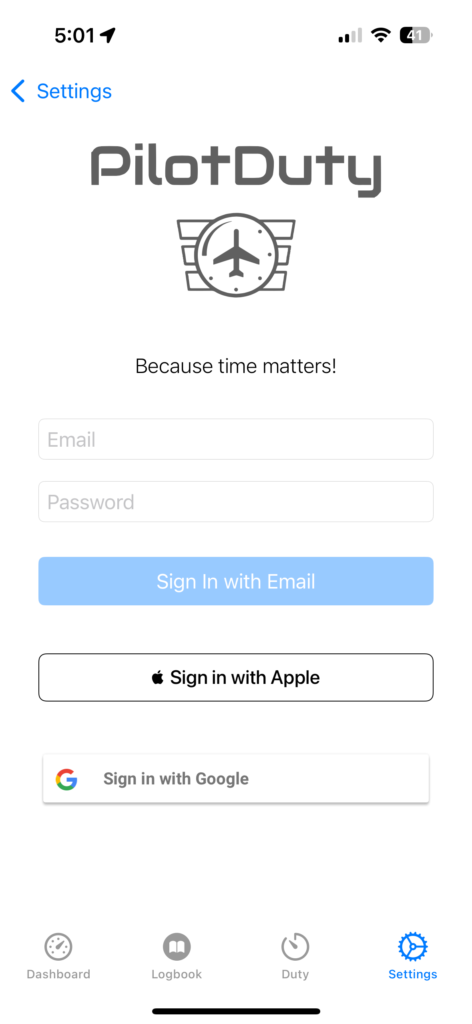
If you’ve completed the onboarding process, you should already have a PilotDuty Manager account.
If you’re not signed in yet, use the same method you used during onboarding:
You can sign in with:
- Email + Password
- Apple Sign-In
- Google Sign-In
🆕 If you don’t have an account yet, you can create one directly at
Step 3 — Manage Sign In – Sign Out #
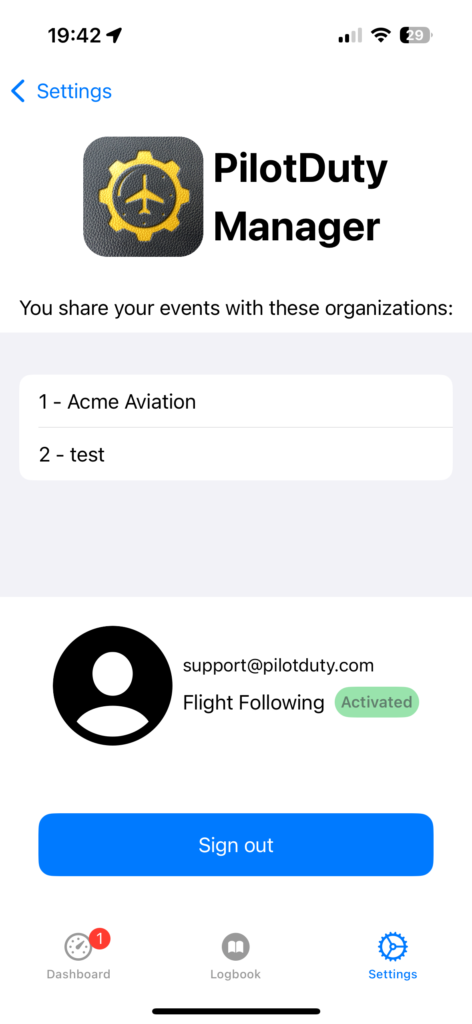
In this section, you’ll see a list of the organizations you’re connected to, such as example :
- Acme Aviation
- test
When connected, your flight and duty events are automatically shared with the organizations in real-time.
Flight Following Status
Your connection status will appear as:
- ✅ Activated (green badge) if sharing is enabled
- ❌ Disabled if no sharing is active
📌 Notes #
- You must have Flight Following enabled to share flights with an organization.
- You must be Signed In to synchronize your flight events (work and rest)*Pro
- Only the organization admin can view your data inside PilotDuty Manager.
- Data is synced securely and updated in real-time.

