
This step-by-step guide will walk you through exporting your personal flight logbook as a PDF or CSV file in the PilotDuty app.
Step 1: Open the Logbook Tab #
- Tap the Logbook icon at the bottom of the screen.
Step 2: Tap Export #
- Press the Export button to begin the export process.

Step 3: Choose Export Format #
- Select Export to PDF from the options.
ℹ️ For .csv file, select Export to .csv, you will get all flights from database in excel format

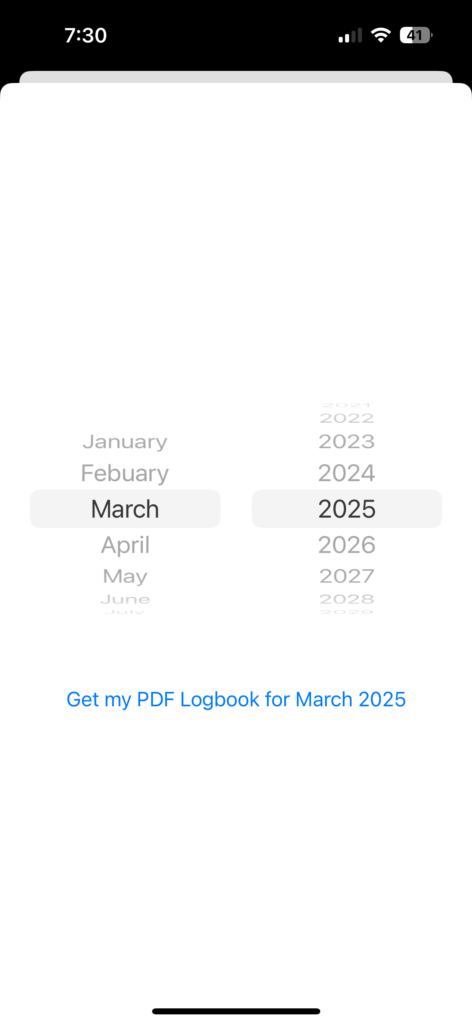
Step 4: Select the Desired Month and Year #
- Scroll through the picker to choose the month and year for your logbook PDF.
Step 5: Tap “Get my PDF Logbook” #
- Tap the link that says “Get my PDF Logbook for [Month Year]” to generate your PDF.
📄 Sample Output #
A typical PDF logbook will include:
- Flight time by aircraft type
- Cumulative flight information
- Flight details with date, callsign, route, time, and remarks
- Totals for PIC, night, IFR, VFR, etc.


ℹ️ Note #
- Make sure your flights are approved before exporting.
- PDF export is ideal for monthly export for compliance and paper archiving purposes.
- .csv export is best for full summaries for archiving.

