
To fully benefit from automatic flight logging, GPS tracking, and iBeacon detection, PilotDuty needs the correct permissions on your iPhone, including the Required iOS Permissions. Without them, the app won’t be able to run in the background or accurately detect your flights. This guide walks you through the essential iOS settings required to make sure PilotDuty functions seamlessly — even when your phone is in your pocket or locked.
🔑 Required iOS Permissions for Optimal Functionality #
📍 Step 1 – Access the General Settings in the PilotDuty App #
Start by opening the PilotDuty app:
- Tap the Settings tab at the bottom right
- Select General
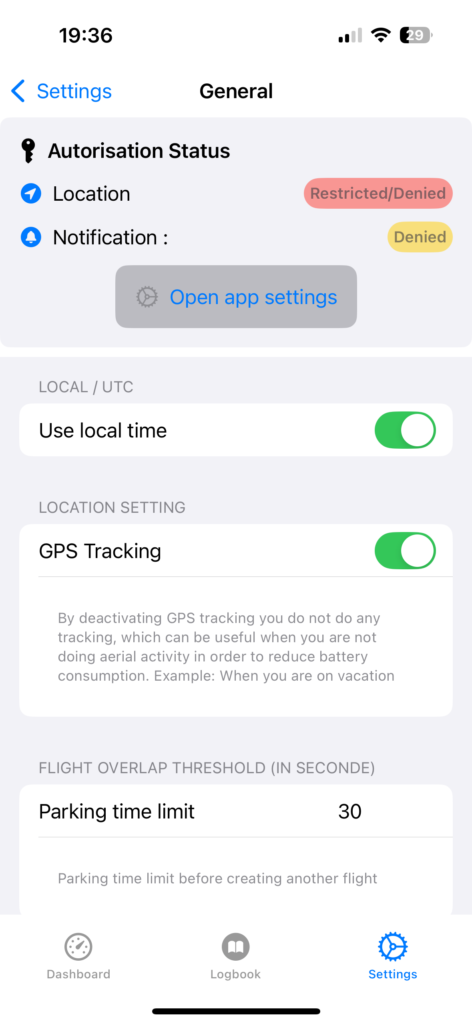
At the top of the screen, you’ll find a section called Authorization Status. This is where you can review the current permission levels granted to the app.
🚦 Step 2 – Check Location and Notification Permissions #
✅ Location
- This is critical for background flight tracking.
- Ensure it does not say “Restricted” or “Denied.”
- If it does, tap the “Open app settings” button to fix this directly in iOS.
✅ Notifications
- Notifications should be enabled to receive flight tracking alerts and system prompts.
- If it shows “Denied,” open iOS settings to manually enable them.
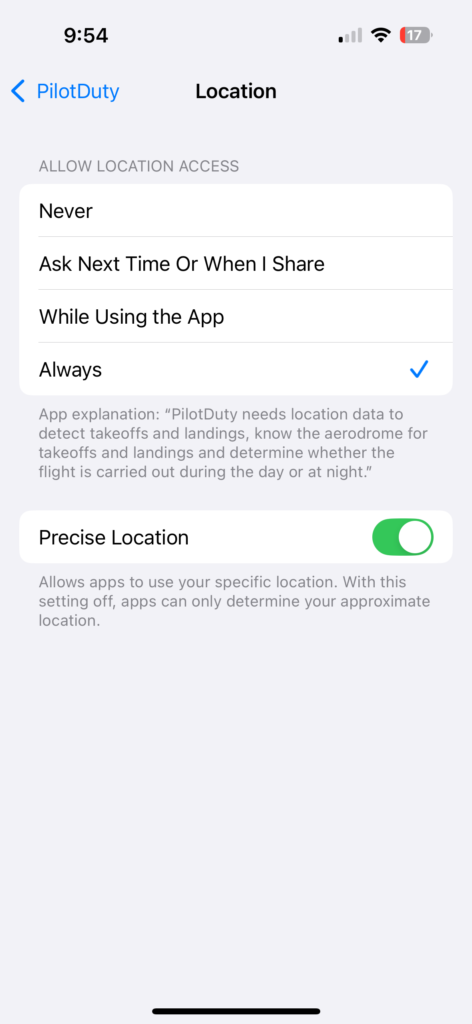
📌 Important: For location tracking to work in the background, it must be set to “Always” in iOS settings. This allows PilotDuty to detect aircraft proximity via Bluetooth (iBeacon) and log movements (GPS) even when the app is closed.
⚙️ Step 3 – Open iOS Settings for PilotDuty #
If you need to manually update permissions, follow these steps:
- Go to your iPhone’s Settings app.
- Scroll down and select PilotDuty.
From here, you’ll adjust specific permission levels for Location and Notifications.

📍 Step 4 – Set Location Access to “Always” #
- Tap Location.
- Set access to “Always”.
- Ensure Precise Location is also enabled, so GPS-based flight tracking works accurately.
Setting location access to “While Using the App” or “Never” will prevent background detection and automatic flight logging. The “Always” option ensures your logbook is updated in real-time — without you needing to open the app manually.
🔔 Step 5 – Enable Notifications #
- Tap Notifications in the same menu.
- Make sure Allow Notifications is turned on.
- Enable Alerts, Sounds, and Badges as needed, so you don’t miss important reminders or safety alerts.

✈️ Why Permissions Matter for Pilots #
PilotDuty uses advanced technologies like Bluetooth Low Energy (BLE) and GPS to detect aircraft presence and log time automatically. Whether you’re using a Bluetooth iBeacon mounted in your aircraft or relying solely on GPS, the app must run in the background to function properly.
Failing to enable the required iOS permissions may result in:
- Missed flight events (takeoff, landing)
- Incomplete duty/rest time tracking
- Inaccurate flight logs
For your safety, accuracy, and compliance, always keep permissions up to date.
✅ Final Tip
If you deactivate GPS Tracking in the PilotDuty General tab, the app won’t log flights — useful only when on vacation or not flying. Ensure it’s ON for normal operations.
This ensures PilotDuty works as intended — silently tracking your flights in the background, just like a co-pilot.

