
This guide explains how to interpret flight duty (FT), work duty (ST), and rest time using the different views provided in the PilotDuty app.
Understanding duty time is crucial for pilots to maintain compliance and manage their schedules effectively, ensuring they adhere to proper duty time regulations.
⚠️ Important #
PilotDuty is a tool to assist aviation companies and pilots but is not a regulatory reference. Always verify official regulations to ensure your compliance.
📅 Time Range Views #
24h / 7d / 28/30d / 90d / 365d: Choose timeframes to view cumulative duty, flight, and rest summaries.
Each time range applies to your total Flight Time (FT), Service Time (ST), and mandatory Rest.

🟢 Green – Rest Periods #
When you see green entries, it indicates periods of rest.
- “Day Off” labels show rest day.
- the green rectangle with tiered represent a rest period
🔵 Blue – Flight Time (FT) #
Flight time (FT) is counted when the aircraft moves under its own power with intent for flight:
- Seen in blue on the right chart margin.
- Helps verify limits with Flight Limit Warning .
⚫️ Grey – Work Time (ST) #
Work/Service Time (WST) includes all tasks except flights such as:
- Planning
- Reporting
- Any other task
🟠 Orange – Flight Limit Warning (FLmt) #
- The orange zone indicates the flight time limit according to the chosen range.
🔴 Red – Service Limit Exceeded (SLmt) #
- A red zone indicates the service time limit for this time slot, this limit evolves according to Canadian rules, for example: the start time of the first flight service.

🚨 Mandatory Days Off #
If regulatory limits are exceeded, PilotDuty will automatically:
- Mark mandatory days off with grey labels.
- Show reasons (e.g., “Mandatory Day Off for 60h Week”)

📃 Informational Rules #
Tapping the (i) icon explains duty requirements such as:
- 120h free from duty within 30 days
- No more than 24h work in any 48h
- Minimum 5 consecutive local nights of rest
- …

🔴 Colored Counters #
Each event card has a red badge:
- Number of flights grouped in the duty period
- Helps track active periods quickly
Example Use Case
Let’s say:
- On August 25, you worked 7.8 hours and completed 2 flights.

🔍 5. Duty Event Detail View #
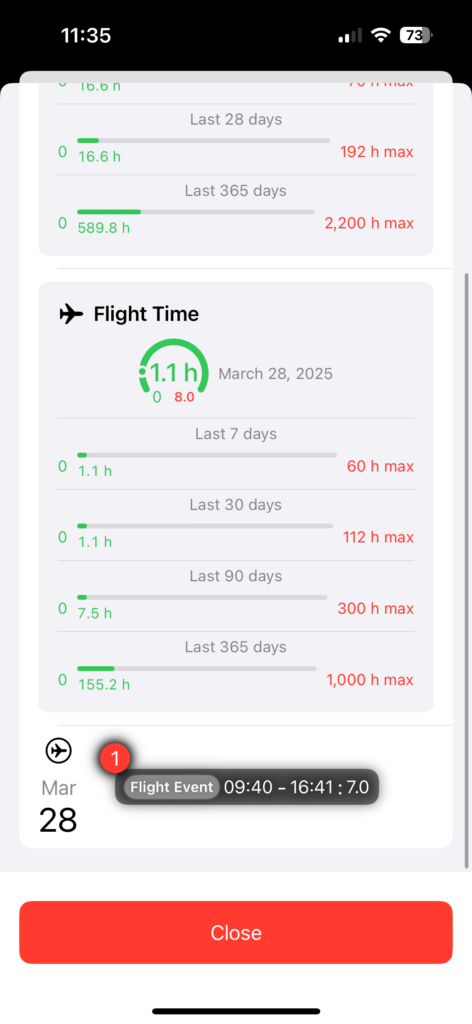
Tap on a day to access a detailed breakdown:
- Service time dial (limit: 13.0 h -> variable)
- Flight Time Dial (limit: 8.0 h -> variable)
- Summaries for the last 7, 30, 90, and 365 days.
- Event List (start/end times and total).
❌ Unapprove option: #
- Swipe left to unapprove an event for editing in the dashboard tab.

Summary #
This view is your real-time assistant to stay under regulatory limits and detect potential fatigue issues. But again:
⚠️ Disclaimer #
Always confirm with your Chief Pilot, manual or the applicable CARs/FARs. PilotDuty is only a support tool.

