
PilotDuty lets you automatically track your flight duty, work duty, and rest periods by defining monitored areas. These zones can be detected by either iBeacon or GPS location and are categorized by type: Aircraft Area, Work Area, or Rest Area.
In this guide, we’ll show you how to:
- Understand how detection works
- Add a new area
- Choose the initiator (iBeacon or GPS)
- Select the area type (Aircraft, Work, or Rest)
Understanding Detection Priority #

PilotDuty uses the following priority logic when detecting areas:
- Initiator Priority:
- iBeacon
- GPS Location + Radius
- Area Priority:
- Aircraft Area
- Work Area
- Rest Area
📌 Example 1: If you’re located within overlapping GPS-based Work and Rest areas, PilotDuty will prioritize the area type with the highest importance. In this case, Work areas take precedence over Rest areas — so your time will be logged as Work.
📌 Example 2: If you’re within overlapping areas where the Work area is GPS-based and the Rest area is iBeacon-based, PilotDuty will prioritize based on the initiator type. Since iBeacon has higher priority than GPS, your time will be logged as Rest.
⚠️ Note:
Aircraft areas always have the highest priority. If a flight event is triggered because you enter an Aircraft area but you do not actually go flying, PilotDuty will automatically convert the flight event into a Work event to ensure accurate logbook tracking.
Smart Event Cleanup & Resumption Rules #
To ensure accurate tracking and remove false or irrelevant entries, PilotDuty uses intelligent filters when creating or resuming events based on your location behavior:
- 💤 Rest Area shorter than 1 hour → If you enter a Rest Area but stay less than 1 hour, the rest event is automatically discarded.
- 🔁 Brief exit from Rest Area (less than 3 minutes) → If you leave and re-enter a Rest Area within 3 minutes, the app will resume the previous rest event instead of creating a new one.
- 🛠️✈️ Work or Flight Area shorter than 3 minutes (0.1h) → If you enter a Work or Flight area for a very short time, the event is discarded to avoid false entries.
- 🔄 Exit and re-entry to Work or Flight Area within 1 hour → If you leave a Work or Flight area and return within 1 hour, the app will resume the previous work/flight event to maintain continuity.
⚠️ Note
Any time spent outside of a tracked area is automatically considered Off Duty, except in the cases listed above.
1. Open the Tracked Area Settings #
- Tap the Settings tab at the bottom right of the screen.

2. Select either Work Area or Rest Area. #

3. Add a New Area #
Tap the + button at the top right to add a new tracked area.

4. Select the newly created area #

5. Choose Initiator Type #
You can choose how the area will be detected:
- Option A: iBeacon
- Option B: GPS Location
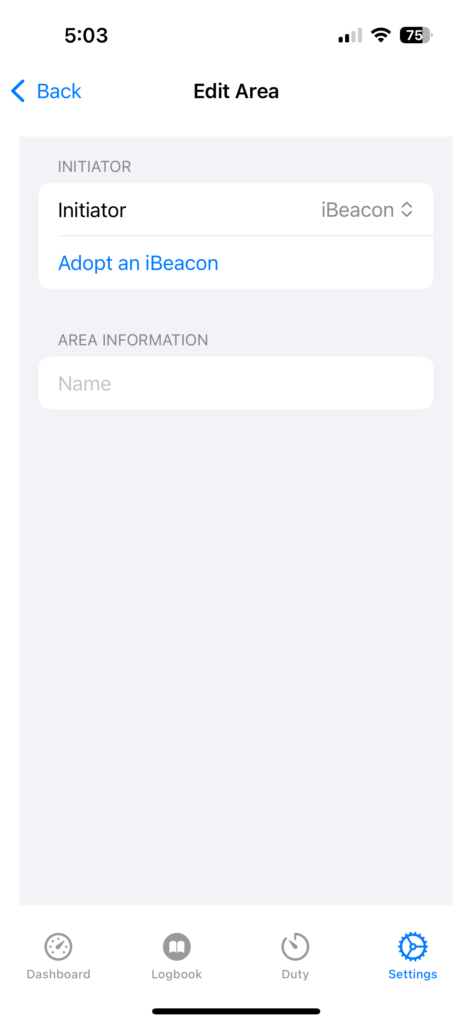
Option A: iBeacon #
- Set Initiator to
iBeacon - Tap Adopt an iBeacon to detect the nearest iBeacon
- Make sure you’re physically near the iBeacon you want to assign

Option A: iBeacon Adoption #
- The app will begin scanning nearby iBeacon devices.
- Once an iBeacon is detected (“Near”), tap Adopt Nearest iBeacon.
- If no iBeacon is found, ensure:
- Batteries are properly installed
- The protective film is removed
- You’re close to the device

Option B: GPS Location #
- Set Initiator to
GPS Location - Tap Get current location to fill in your coordinates automatically
- Set the Radius (in meters) for how far the area extends
🔍 GPS detection is a great option when you need to cover a large area.

Option B: GPS Location Name #
- Enter a descriptive name (e.g., “CYBC”, “Crew Office”…)

✅ Final Step – Exit #
Once configured, the area will appear in your tracked area list.
PilotDuty will now automatically log time when entering or exiting this zone.
Additional Notes #
- Only one area can be active at a time.
- If multiple areas overlap, the app uses the priority rules described earlier.
- iBeacon is the preferred method for precise indoor detection or in a moving area such as an aircraft.
- Require location permission set to “Always”.

