Skip to content
  • PilotDuty – App
  • PilotDuty Manager
  • Resources
    • Features
    • Blog
    • docs
    • FAQ
    • Terms Of Use
    • Privacy Policy
    • Cookie Policy
  • Shop
    • Shop
    • Cart
    • My account
  • Contact

Archives

  • June 2025
  • May 2025
  • March 2025

Categories

  • Application
  • Case Study
  • Technology

How can we help you?

🚀 Getting Started With PilotDuty iOS APP

  • Understanding what does this view mean?
  • Initial configuration (OnBoarding)
  • How to Ensure PilotDuty Has the Required iOS Permissions for Background Flight Tracking

🔧Configurations of the PilotDuty iOS APP

  • Edit Pilot Profile
  • Add a Aircraft
  • Add a Work or Rest Area (PRO)
  • Set the Parking Time Limit
  • Setup of Flight Following
  • Connect to PilotDuty Manager
  • Setup Medical, License and Proficiency Validity (PRO)

👨‍✈️ Use of the PilotDuty iOS app

  • Understanding How the App Handle Event and Flight
  • Manually Adding an Event (Flight / Work / Rest)
  • Manually Adding Flight to an Event
  • Get a Summary of Your Personal Logbook
  • Export My Personal Logbook
  • How to Disapprove a Flight (Event)
  • Interpret duty time information (PRO)
  • Flight Following on PilotDuty Manager
View Categories
  • Home
  • Docs
  • iOS App
  • 👨‍✈️ Use of the PilotDuty iOS app
  • Manually Adding an Event (Flight / Work / Rest)

Manually Adding an Event (Flight / Work / Rest)

2 min read

Manually Adding an Event #

There may be times when you need to manually create an event. Whether it’s a flight that wasn’t automatically tracked, a ground duty period, or a rest break, you can easily add these events from the Dashboard tab.


Step 1 – Open the Dashboard Tab #

Tap on the + icon at the top-right corner of the screen.

Manually Adding an Event

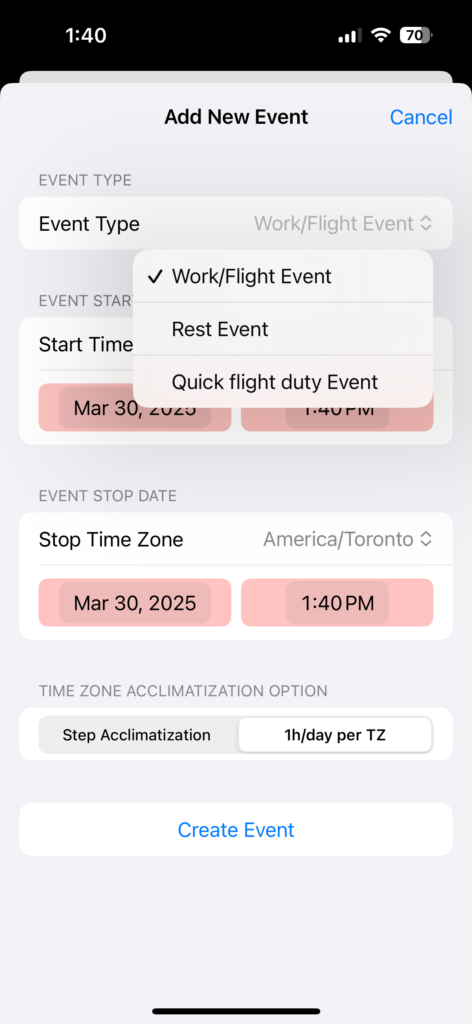
Step 2 – Select Event Type #

Choose between:

  • Work/Flight Event: For duty or flight activities.
  • Rest Event: For breaks and rest periods.
  • Quick Flight Duty Event: Fast entry mode with basic fields.

ℹ️ Quick Flight Duty Event creates a batch of flights using global flight data, and is meant only for duty tracking.

Do not use this option if you want accurate flight logging for your personal logbook.
edit Event

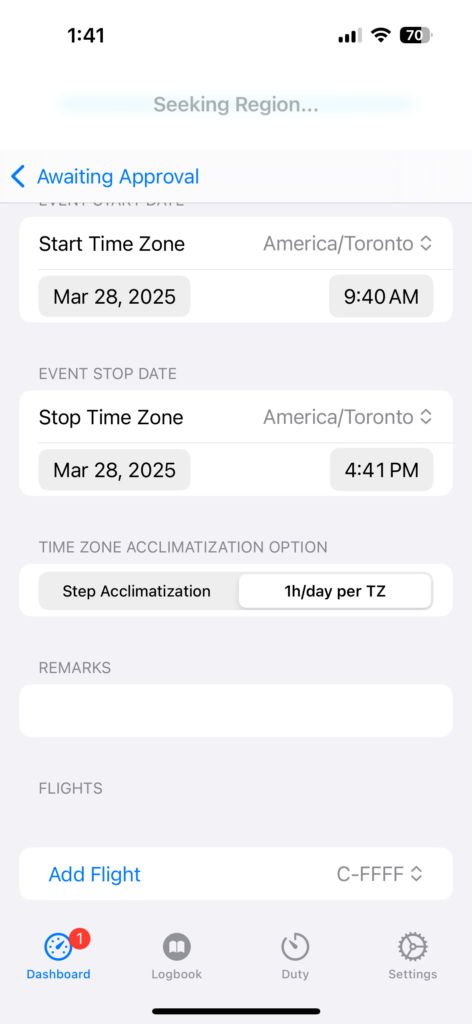
Step 3 – Fill in the Event Details #

  • Start/Stop Date and Time
  • Time Zone
  • Acclimatization Option if applicable
edited Event

Optional Step – Add Flight(s) #

How to Add Flight
edit Event Add Aircraft Arrow

Step 4 – Finalize and Approve #

Once your event and flights are properly entered, return to the dashboard and swipe right to approve the event.

Approved events will then appear in your Logbook and Duty tabs.

dashboard Event Created

⚠️ Important Note #

All events in the Dashboard are pending approval. Once approved:

  • The event becomes visible in the Logbook and Duty tabs.
  • The event is locked for editing. To make changes, you must unapprove it first.
  • If you’re connected to one or more organizations via PilotDuty Manager, the event will be automatically synced upon approval.

If the event is modified in PilotDuty Manager, changes will reflect in the app. If it’s deleted on the web platform, the event will be sent back to your dashboard as “awaiting approval”.

This system ensures the integrity and security of your flight data. It is your responsibility to verify the accuracy of each event before approval.

What are your Feelings

Share This Article :

  • Facebook
  • LinkedIn
Still stuck? How can we help?

How can we help?

Updated on June 12, 2025
Understanding How the App Handle Event and FlightManually Adding Flight to an Event

Leave a Reply Cancel reply

Your email address will not be published. Required fields are marked *

Table of Contents
  • Manually Adding an Event
  • Step 1 – Open the Dashboard Tab
  • Step 2 – Select Event Type
  • Step 3 – Fill in the Event Details
  • Optional Step – Add Flight(s)
  • Step 4 – Finalize and Approve
  • ⚠️ Important Note

ABOUT PilotDuty


PilotDuty® is the only fully automatic flight logbook for general aviation pilots — featuring iBeacon-based flight tracking, SMS flight following, and aircraft maintenance monitoring. Trusted by aviation professionals across North America.

QUICK LINKS

  • PilotDuty – App
  • PilotDuty Manager
  • Contact Us
  • Shop

CONTACT US

Feel free to contact & reach us !

Address : Mascouche, Qc Canada
Email : support@pilotduty.com
Phone : 1 (888) 969-2594

RESOURCES

  • FAQ
  • Docs
  • Blog
  • Terms Of Use
  • Privacy Policy
  • Refund and Returns Policy
  • Cookie Policy
Copyright © 2026 PilotDuty. Powered by M2D3V