
Understanding Notification on the app icon #
🔁 Understanding What Are Detected Regions? #
Detected regions refer to location-based zones monitored by the app, such as:
- Aircrafts
- Work or rest areas configured in your app
PilotDuty uses these regions to automatically detect events such as Understanding:
- Arrival at a monitored zone
- Departure from a monitored zone
If the detected area is an aircraft, GPS tracking will automatically start to detect:
- Off Block time
- Takeoff time
- Landing time
- On Block time
The app will also associate the nearest airport and determine whether the flight occurred during day or night.
📲 What Should I Do? #
You don’t need to take any immediate action. This badge simply indicates that the app is actively monitoring your location for operational or duty tracking purposes.
However, if the number remains high or seems incorrect:
Open the app to allow it to refresh the detected regions
Check the Dashboard or Settings tab for more details
Ensure your location services are enabled

Understanding DashBoard Tab #
Understanding detected regions refers to location-based zones monitored by the app, such as:
This screen shows your Event List in the Dashboard tab of the PilotDuty app. Each block represents a event that has been automatically or manually recorded.
Here’s a breakdown of each element:

🔢 Number of Events Not Yet Approved #
The red badge on the Dashboard icon shows how many flight events require your attention (approval or deletion).
🛫 Type of Event #
The label like “Flight Event” tells you what kind of duty was recorded — for example, Flight, Work, or Rest.
✈️ Number of Flights in This Event #
This number (e.g., “1”) represents how many flights are grouped in the selected event.
⏱️ Event Start / Stop Time #
Displays the start and stop time of the event.
🕒 Duration of the Event #
Shows the total duration of the event in hours.
✅ Medical, License and Proficiency Validity Status #
The green badge (e.g., “62”) shows how many days are left before any of your required documents (medical, license, or PPC) expire.
🛬 Aircraft Flight State #
Indicates the current state of the aircraft (Parked, Taxiing, Flying) associated with the event — useful when multiple aircraft are monitored.
➕ Add an Event Manually #
Tap the “+” icon to manually create a new flight, work, or rest event if one was missed or needs to be adjusted.
🧩 Event Widget Action / State #
Each event card has built-in action buttons depending on its current state:
- Blue “Approve” button – Confirms and saves the event to your logbook.
- Red “Delete” button – Removes the event permanently.
- Red background – Indicates that Flight Following is active and the flight is still in progress or awaiting confirmation of “Safe”.
📘 Understanding LogBook Tab #
This screen displays your personal logbook, showing a detailed list of recorded flights and your total flight time as a pilot.
Let’s go over each element of this view:
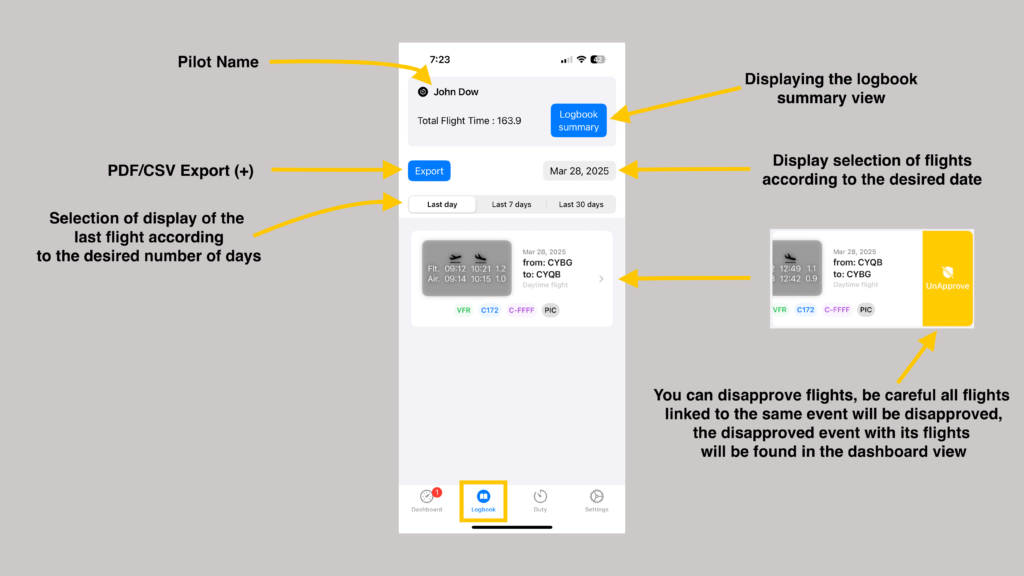
👤 Pilot Name #
Your name appears at the top of the screen to indicate that this logbook belongs to you.
✈️ Total Flight Time #
Displays the cumulative total of all approved flight time entries.
📄 Logbook Summary View #
Tap “Logbook summary” to access a breakdown of your logged hours by category (day/night, PIC, aircraft type, etc.).
📅 Flight Display Filters #
Use the buttons Last day / Last 7 days / Last 30 days to control how many past flights are displayed.
You can also select a specific date using the calendar button next to the filter.
📤 Export Button #
Tap Export to generate and share your logbook in PDF or CSV format. Useful for backups or sending to your operator.
📋 Understanding Flight Widget #
Each card shows the details of a flight, including:
- Flight and air time
- Departure and arrival airports
- Time of flight (day or night)
- Flight rules (VFR/IFR)
- Aircraft type
- Call sign
- Your role (e.g., PIC)

🚫 Unapprove a Flight #
If you notice a mistake in a flight entry, you can swipe right and tap “UnApprove” to move it back to the Dashboard > Awaiting Approval list.
⚠️ Important:
All flights linked to the same event will be unapproved together. You can edit or delete them from the dashboard afterward.
🕒 Understanding the Duty Tab #
The Duty tab in PilotDuty helps you monitor your flight time, duty time, and rest periods across multiple days, making it easier to stay compliant with flight and duty limits.
Here’s a breakdown of everything visible on this screen:

📊 Chart Timelapse Selection #
At the top, choose how much data to visualize at once:
- 24h, 7 days, 28/30 days, 90 days, or 365 days
🎨 Color Chart Definition #
The legend explains what each color on the graph means:
- Rest (green)
- Flight Time (FT – purple)
- Service Time (ST – grey)
- Flight Time Limit (FLmt – beige)
- Service Time Limit (SLmt – red)
📅 Event Types #
Icons on the left show the type of each event:
- ✈️ Flight Event
- 🛏️ Rest Event
- 🏢 Work Event
⏱️ Event Start/Stop Time & Duration #
Each event displays:
- Start time
- Stop time
- Total duration
🌍 Timezone Currently Acclimatized #
Displays your current acclimatized time zone offset, adjusted based on recent location and time zone exposure.
🟢 Rest Time #
Amount of time recorded as rest in the selected period.
🔵 Flight Time #
Displays the total flight time during the day.
⚪ Flight Time Limit #
Shows if you’re approaching or exceeding regulatory flight time limits.
⚫ Time in Service #
Total duty time spent working, including both flight and non-flight duty periods.
🔴 Time Limit in Service #
Indicates you are nearing or have reached your maximum duty time allowed by regulation.
🔢 Number of Flights in the Event #
Red badge shows how many flights are grouped into that event.
🧭 Rest Day Indicator #
A label like “Day Off” shows that no duty activity was recorded for that date — it’s a full rest day.
This view is your regulatory snapshot — helping you and your company stay within Transport Canada’s limits.

