
PilotDuty offers a powerful Flight Following feature that allows real-time flight monitoring directly from the app to your organization’s web platform, PilotDuty Manager. This system automatically tracks key flight events and statuses, making it easier to follow your aircraft during operations and ensure safety compliance.
🔍 What is Flight Following? #
When the Flight Following feature is activated in the PilotDuty app, your device automatically transmits milestones to PilotDuty Manager. This includes:
- Off Block Time (departure)
- Takeoff Time
- Low Speed Maneuver detection
- Landing Time
- On Block Time (arrival)
• Live GPS position for each milestone
This information is used to follow the flight’s progress in real time from the web dashboard.
📡 Real-Time Flight Statuses
The flight is tracked through four possible statuses:
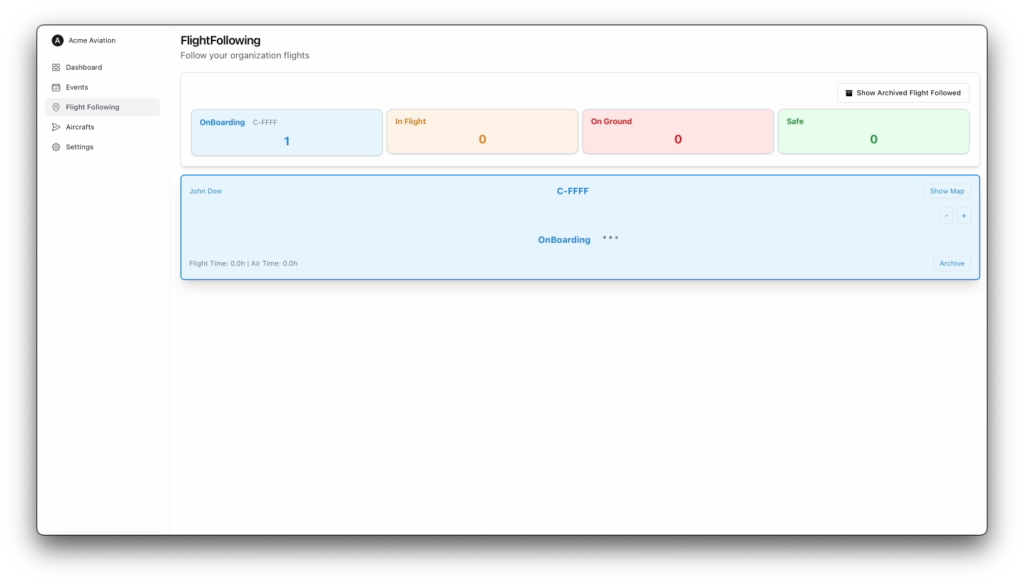
1. OnBoarding
Indicates a flight has been created and is ready to begin. The aircraft is not yet moving.
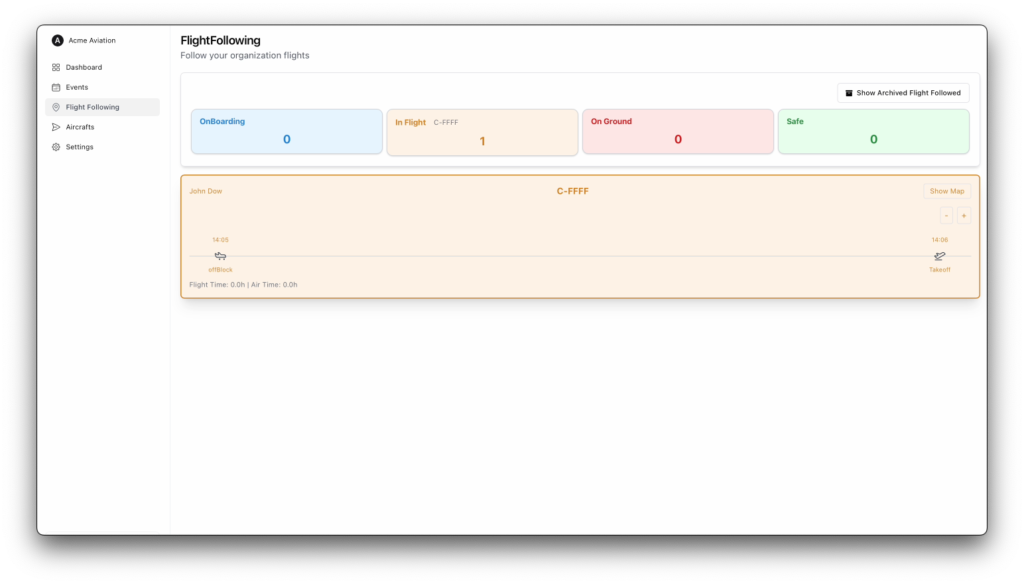
2. In Flight
The aircraft is airborne. This status begins after Takeoff and ends at Landing.
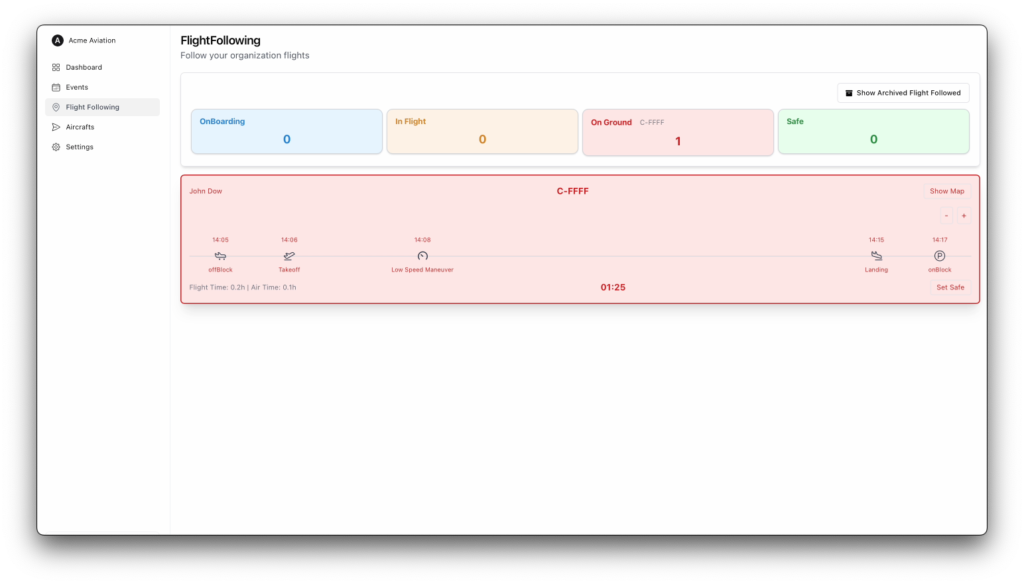
3. On Ground
The aircraft has landed but is not yet marked Safe. This status is used when the aircraft is immobilized for a period longer than ‘parking limit time‘ and the pilot has not yet indicated that it is safe, a countdown is displayed at the bottom center of the widget
4. Safe
The aircraft is confirmed parked safely, and the flight is completed. No further action is expected.
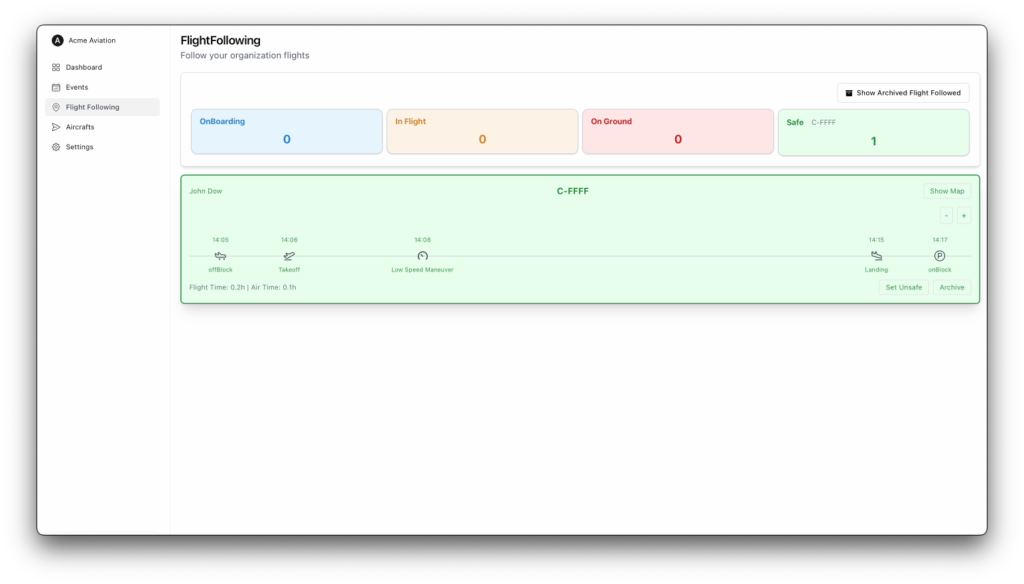
Each status is visually represented on PilotDuty Manager with a unique color:
- Light Blue = OnBoarding
- Yellow = In Flight
- Red = On Ground
- Green = Safe
🧭 Key Events Automatically Detected
PilotDuty uses the iPhone’s GPS to detect the following events:
- OffBlock: Detected when the aircraft starts taxiing
- Takeoff: Detected when speed exceeds a threshold (indicating liftoff)
- Low Speed Maneuver: Detected when the aircraft slows down after landing
- Landing: Detected when the aircraft touches the ground
- OnBlock: Detected when the aircraft is parked and not moving
These events are shown with timestamps and positions in both the app and the web platform.
🧑✈️ How to Use It as a Pilot #
✅ Setting Flight Safe
When an event appears in red, it means a flight included in that event is in progress, is shared with the aircraft’s organization, and has not yet been marked as Safe.
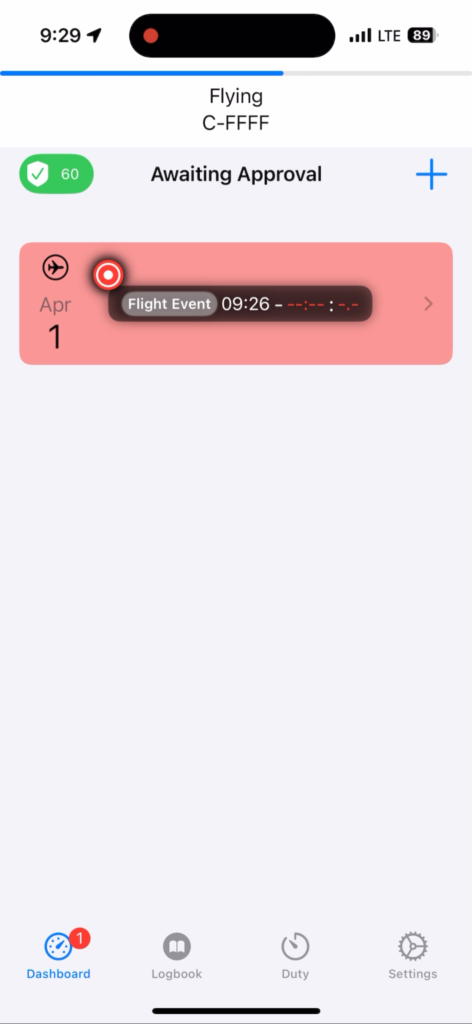
To mark it as safe:
- Open the event.
- Locate the red-colored flight.
- Swipe right on the flight to indicate it is Safe.
The flight must be completed before it can be marked safe.

If the pilot lands and does not manually indicate the flight is Safe, the app will automatically mark the previous flight as safe once a new takeoff is detected, and a new flight will be created.
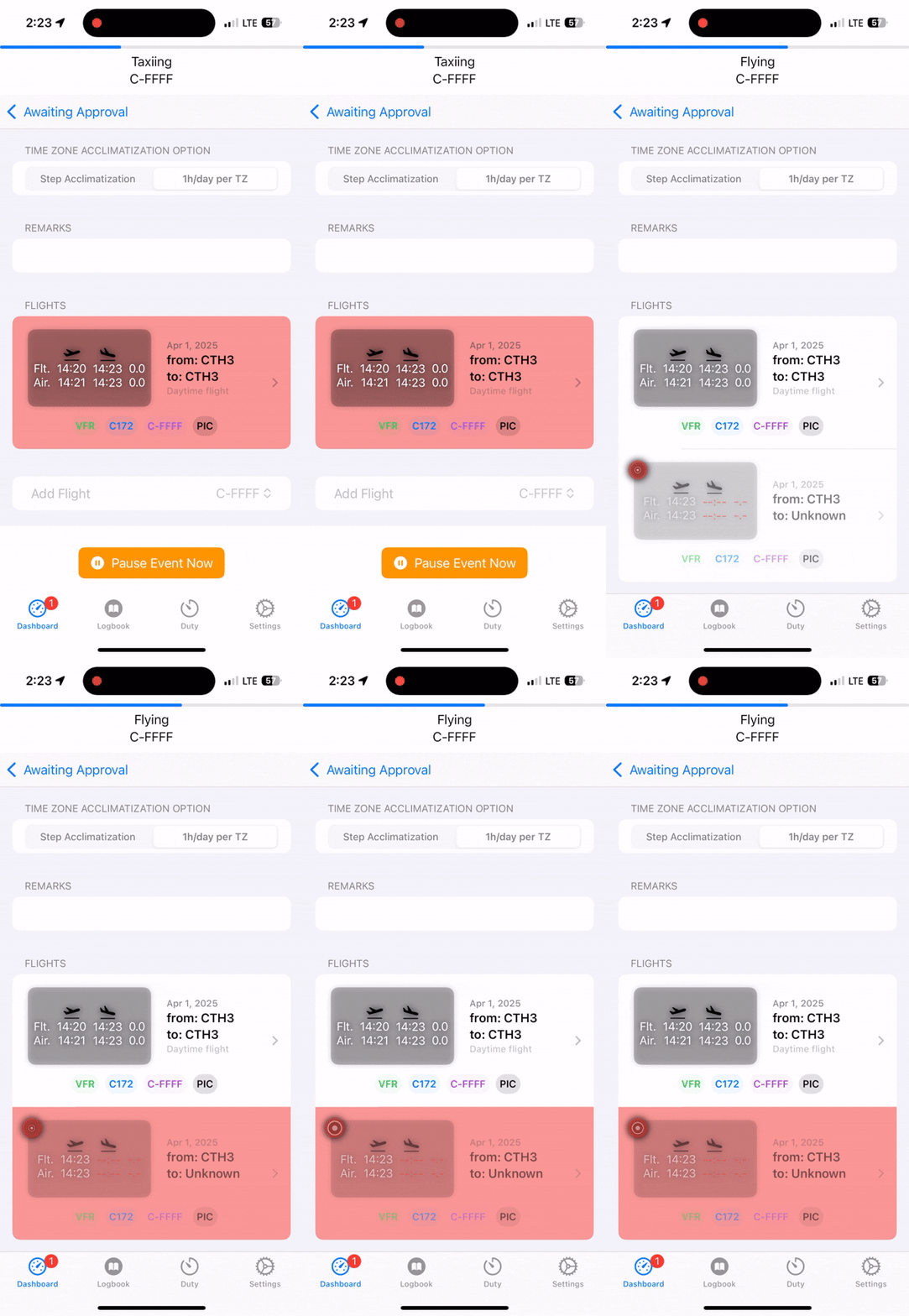
Once the aircraft is safely parked and the parking limit time has passed:
• The pilot must mark the flight as Safe
• This status is sent to PilotDuty Manager
• Dispatchers can also manually click “Set Safe” from the web interface if needed
Flights marked Safe can be archived in the system for future reference.
🌐 For Organizations and Dispatchers #
From PilotDuty Manager, organizations can:
- Monitor multiple aircraft live
- View real-time flight status updates
- View a map of current or past flights
- See how long a plane has been on the ground without being marked safe
- Set flight status to Safe manually if needed
- Manually set a flight’s status to Safe, if required

