
To allow PilotDuty to calculate the validity of your medical, license, and proficiency check, you need to enter your personal data. Here’s a step-by-step guide:
Step 1: Access the Pilot Status Page #
- Open the Dashboard tab.
- Tap the validity badge in the top-left corner.
- This will open the Pilot Status view.
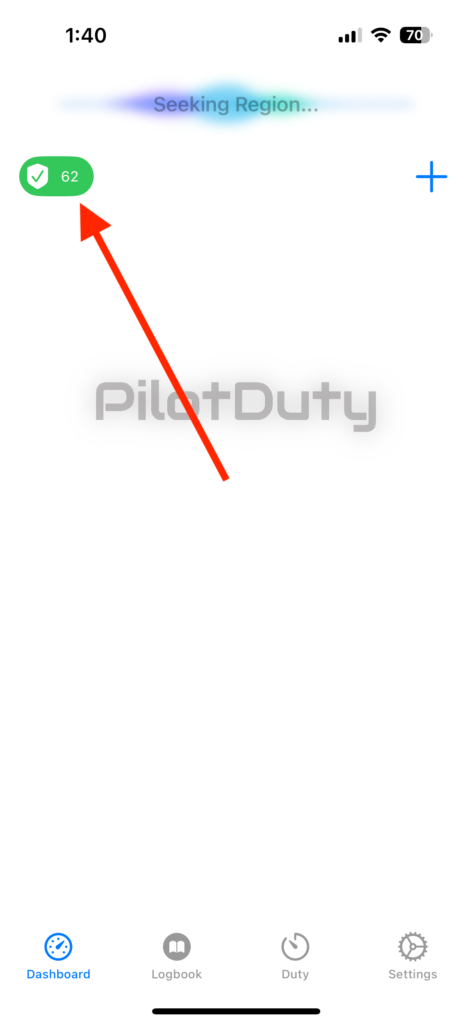
Pilot Status View
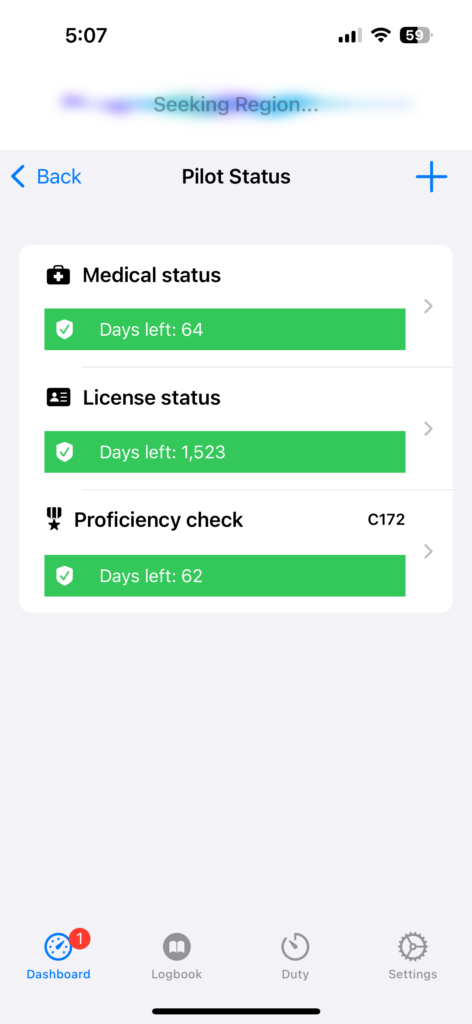
Step 2: Enter Your Medical Information #
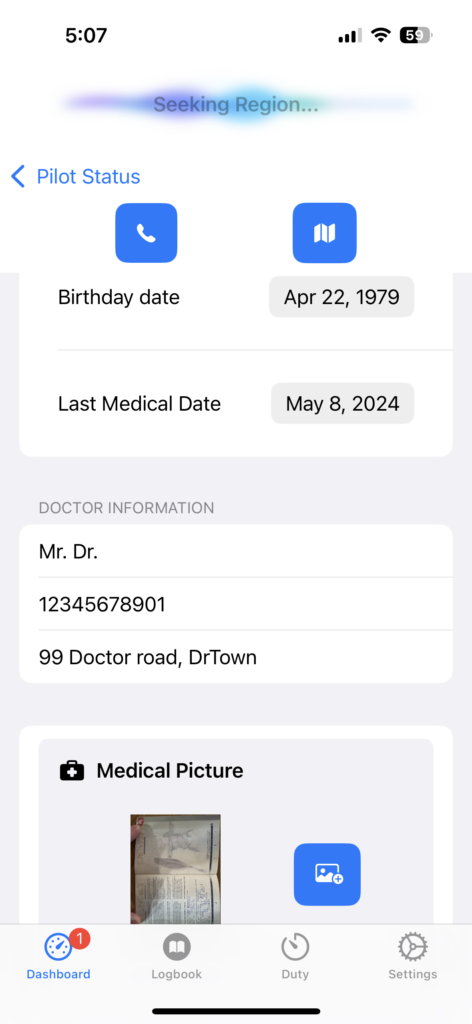
- Under the “Medical status” section, enter the Last Medical Date.
- Optional: add Doctor name, Phone number and Address (when this information is fill a phone and navigation button appear)
- Optional: You can also upload a picture of your medical certificate.
Step 3: Enter Your License Information #
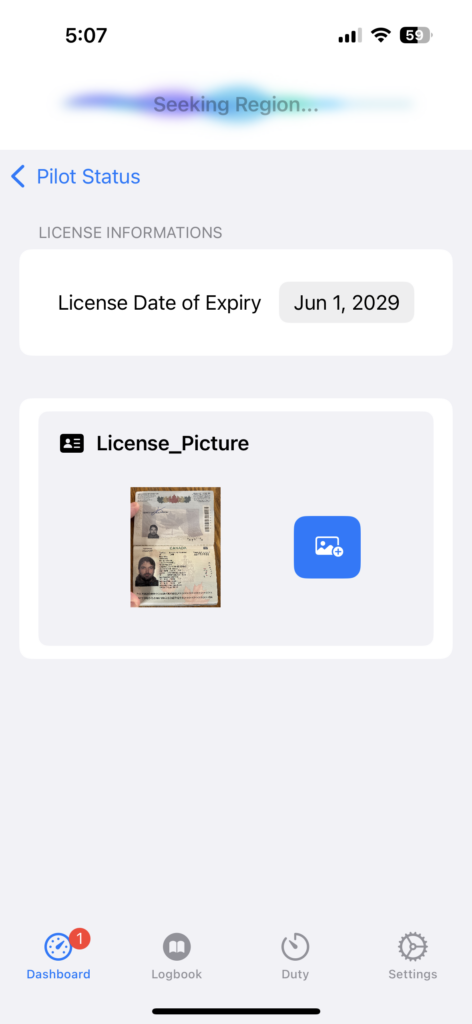
- Under the “License status” section, tap the box and select the License Expiry Date.
- Optional: Upload a photo of your license.
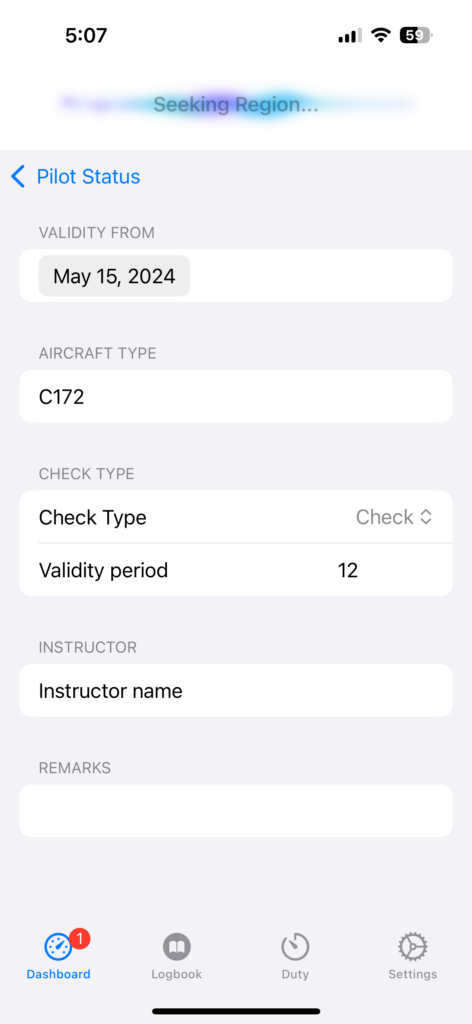
Step 4: Enter Proficiency Check Details #
- Tap the Proficiency Check section.
- Enter the following:
- Validity Start Date
- Aircraft Type (e.g., C172)
- Check Type (e.g., PCC, PPC)
- Validity Period in months (e.g., 12)
- Optional: Enter instructor name and remarks
ℹ️ Info: Once the information is recorded, PilotDuty automatically calculates the number of days remaining before each document expires. The worst-case statuses are updated and displayed as green, orange, or red badges on the dashboard.

