Understanding How the App Handle Event #
Once you’ve configured your aircraft, rest and work areas, and enabled tracking, the app automatically monitors your activity and creates time-tracking events accordingly. Here’s how it works:
📂 Data Structure #
The app automatically creates Events when you enter or exit a tracked area. There are three types of events:
- Flight Event ✈️
Created when the app detects entry into an aircraft area.
A flight event contains one or more Flights, with all the necessary details (offBlock, takeoff, landing, onBlock, aircraft info, etc.).
- Work Event 🧰 (Pro feature)
Created when the user enters a defined Work Area (iBeacon or GPS region) and is not flying.
- Rest Event 🛌 (Pro feature)
Created when the user enters a Rest Area (iBeacon or GPS region), typically during off-duty time.
⏱️ Note: Aircraft regions always have the highest priority. If you enter an aircraft area but no flight occurs, the app will convert the flight event to a work event.
⚠️ Important Note About Event Approval #
All events listed in the Dashboard tab are awaiting approval.
They must be approved to appear in your Logbook and Duty records.
If you’re a member of one or more organizations on PilotDuty Manager, your events will be automatically synced with those organizations once approved.
🔒 Once approved: #
- Events become locked: you can no longer edit or delete them.
- To make changes, you must first unapprove the event, then edit, and reapprove it.
🔄 Sync with PilotDuty Manager: #
- If an event is edited on the PilotDuty Manager platform, the changes will be reflected automatically in the app.
- If an event is deleted from PilotDuty Manager, it will reappear in the Dashboard as “Awaiting Approval”.
You’ll need to either delete it if it was intentional, or reapprove it if it was a mistake.
✅ This workflow ensures data integrity and traceability at all times.
🚨Pilot Responsibility #
The pilot is responsible for verifying the accuracy of all auto-recorded data by reviewing and approving each event.
📊 Reviewing Events in the Dashboard #
Dashboard tab #
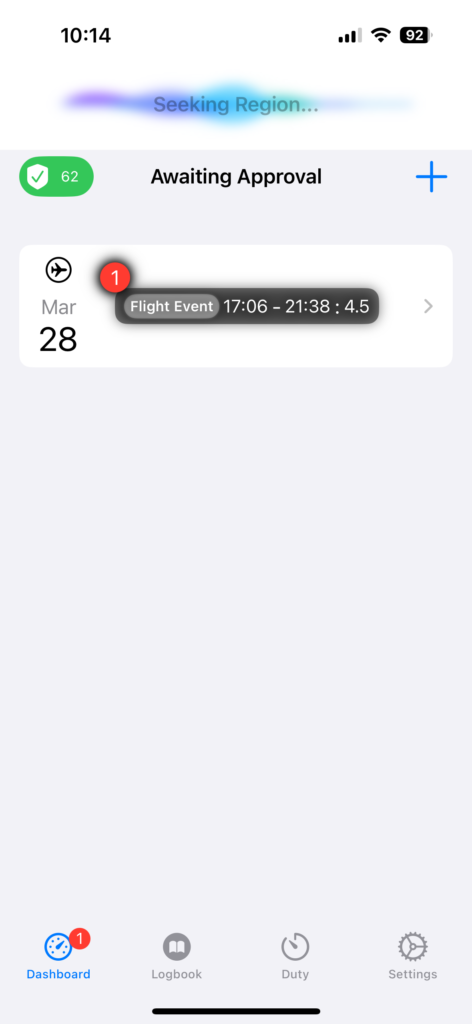
Events that haven’t been reviewed yet appear in the Dashboard tab under the “Awaiting Approval” section:
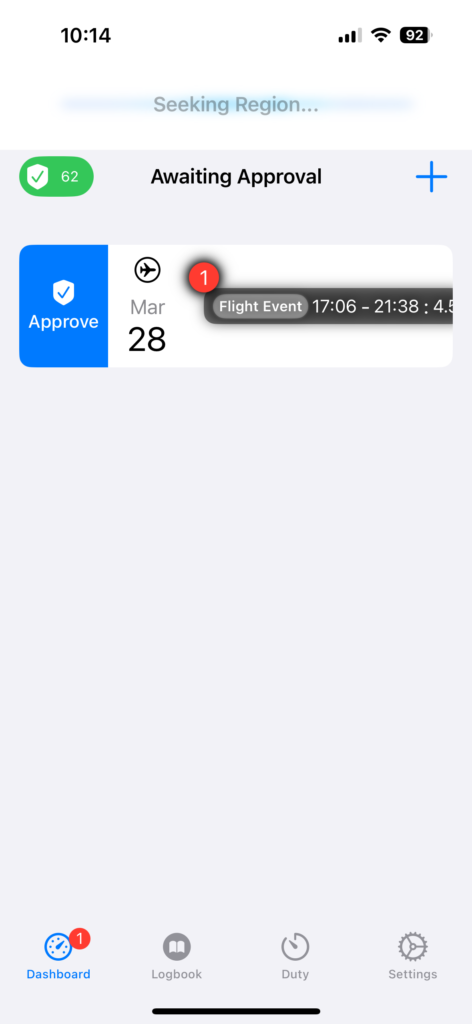
Approve Event #
- Swipe right ✅ to approve an event
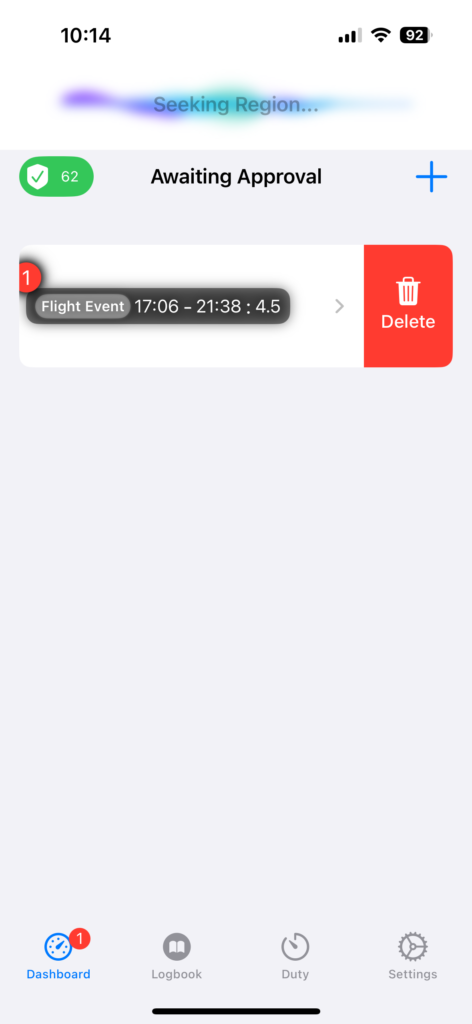
Delete Event #
- Swipe left 🗑️ to delete an event
Edit Event #
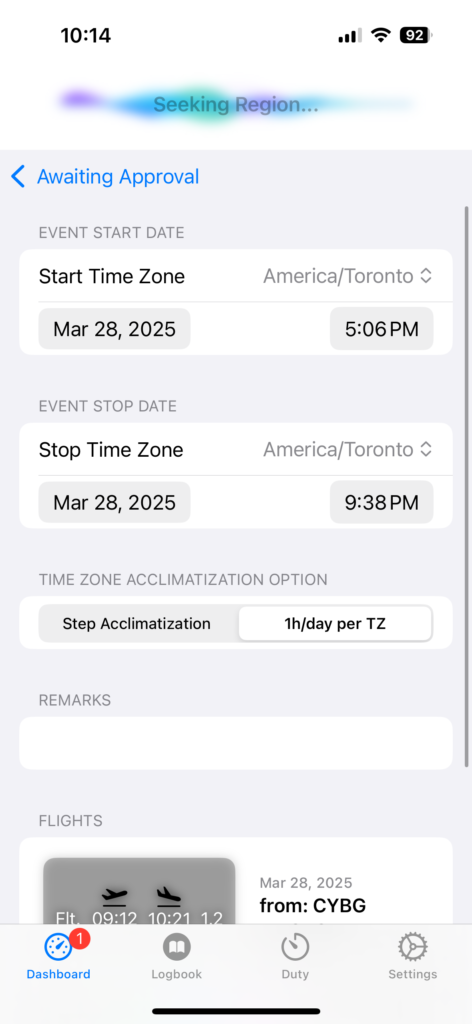
- Tap an event to edit or view more details
- Editing a Flight Event (includes time zone settings, acclimatization, remarks)
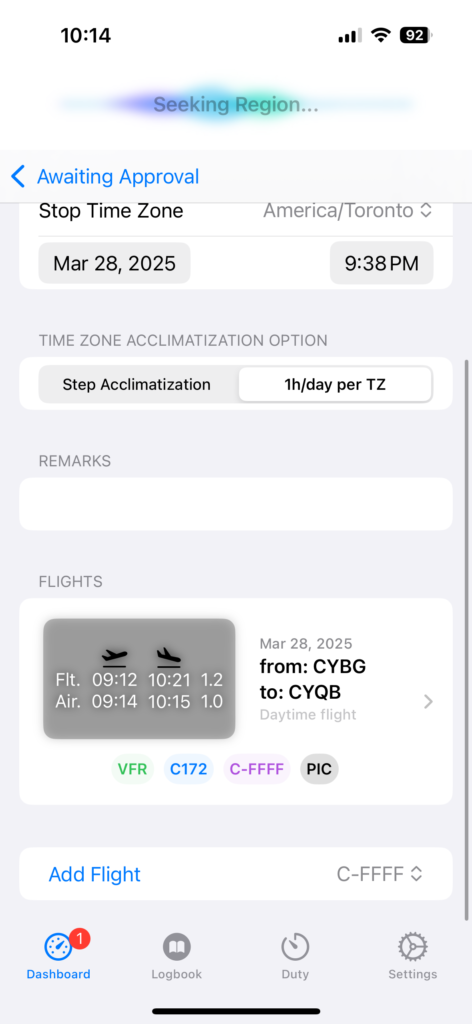
Flight List #
If it’s a Flight Event, you’ll see all associated Flight Widgets (one per leg or flight).
- Event list with one Flight Event
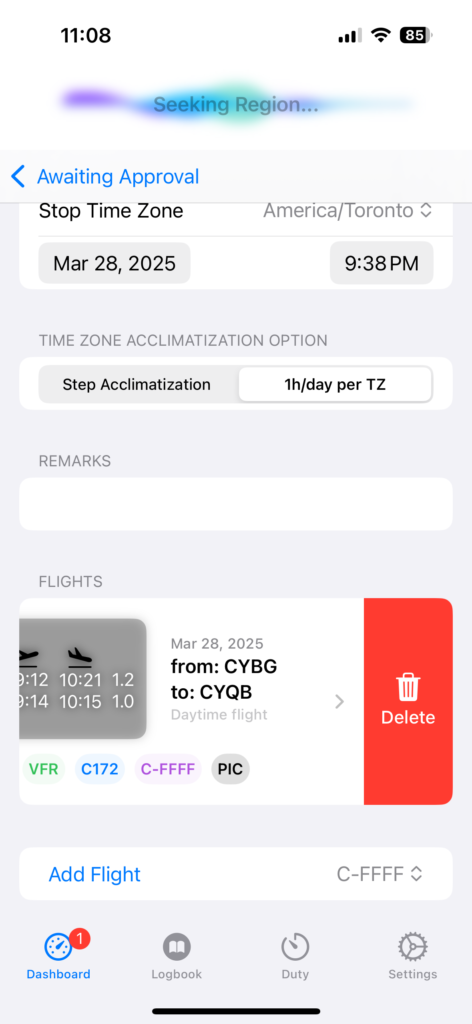
Delete Flight #
- Swipe to Delete
Edit Flight #
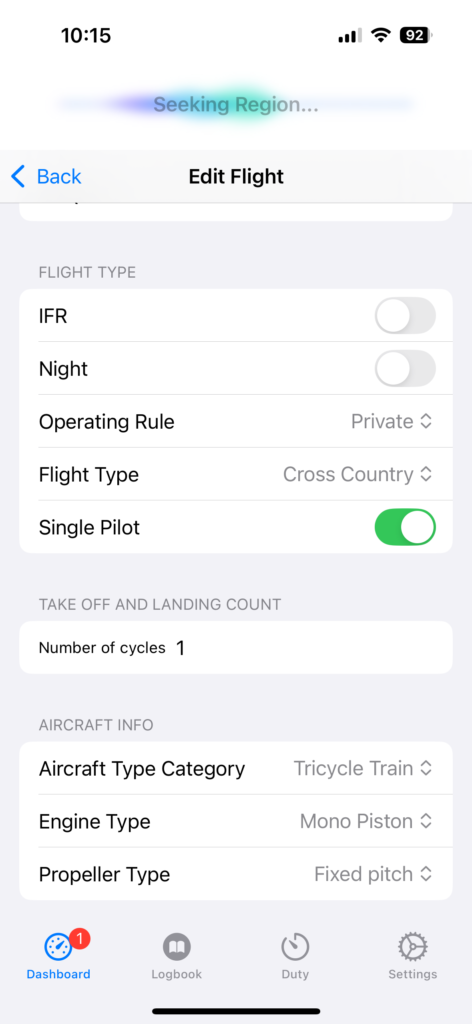
- Tap for editing a Flight (includes CallSign, Aircraft Type, Departure Airport, offBlock, takeoff, landing time and more)
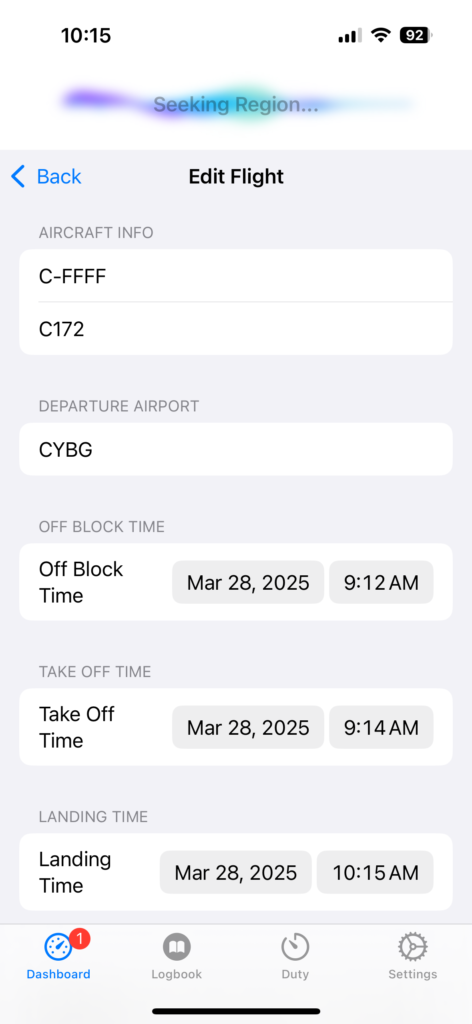
- Flight details (aircraft settings, cycles, and more)