
This guide explains how to manually create and manage Work, Flight, and Rest events, as well as how to add associated flight details using PilotDuty Manager.
Step 1: Access the Event Creation Modal #
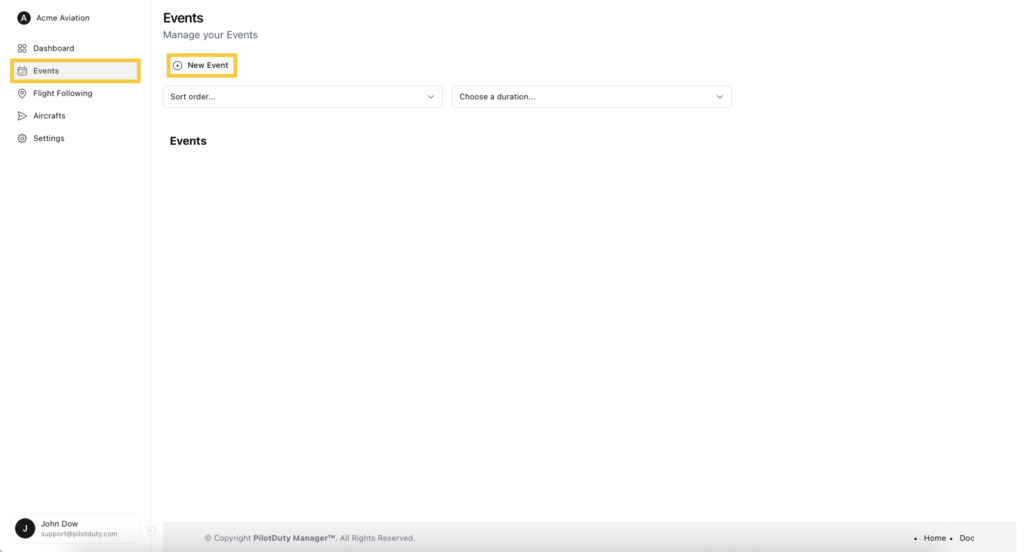
Click the New Event button at the top of the page.
Navigate to the Events tab in the left-hand menu.
Step 2: Choose the Event Type #
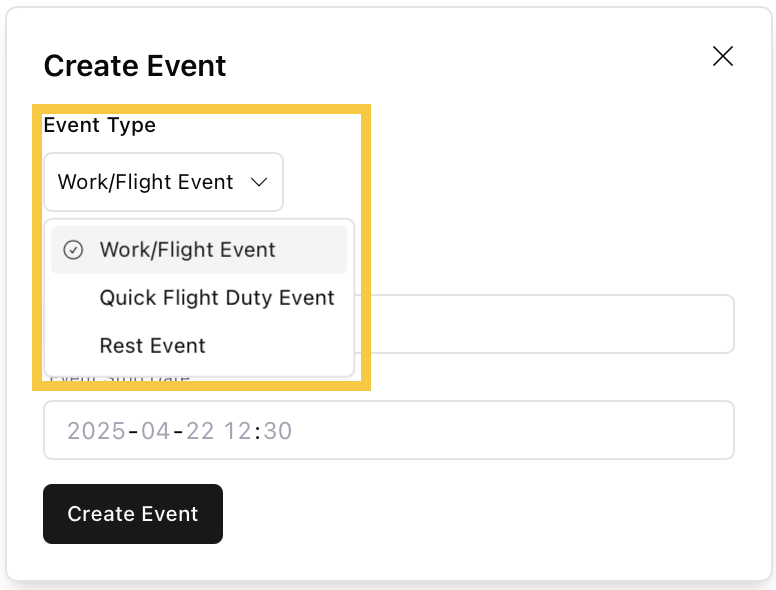
In the “Create Event” modal:
Click the Event Type dropdown menu.
Choose one of the following options:
- Work/Flight Event (Default)
- Quick Flight Duty Event
- Rest Event
Step 3: Set the Event Time #
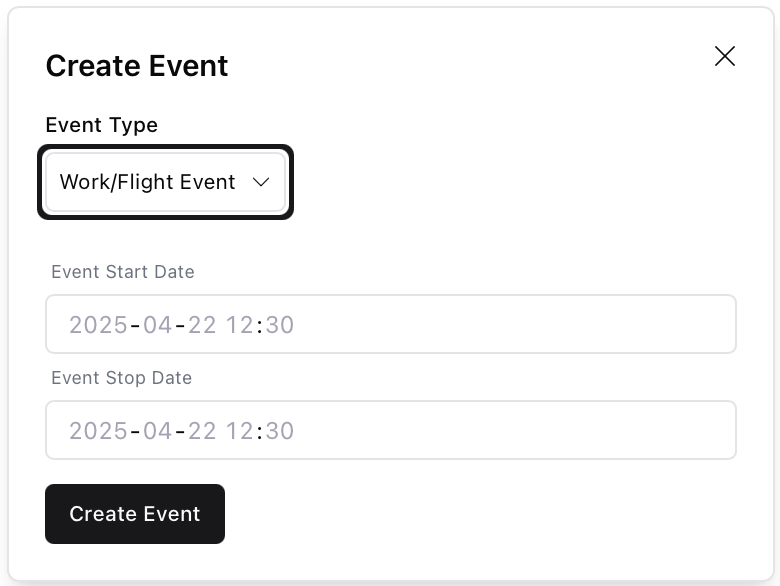
- Select the Event Start Date and Event Stop Date.
- Click Create Event to proceed.
Once created, the event will appear in the list.
Step 4: Edit the Event and Choose Type (Optional) #
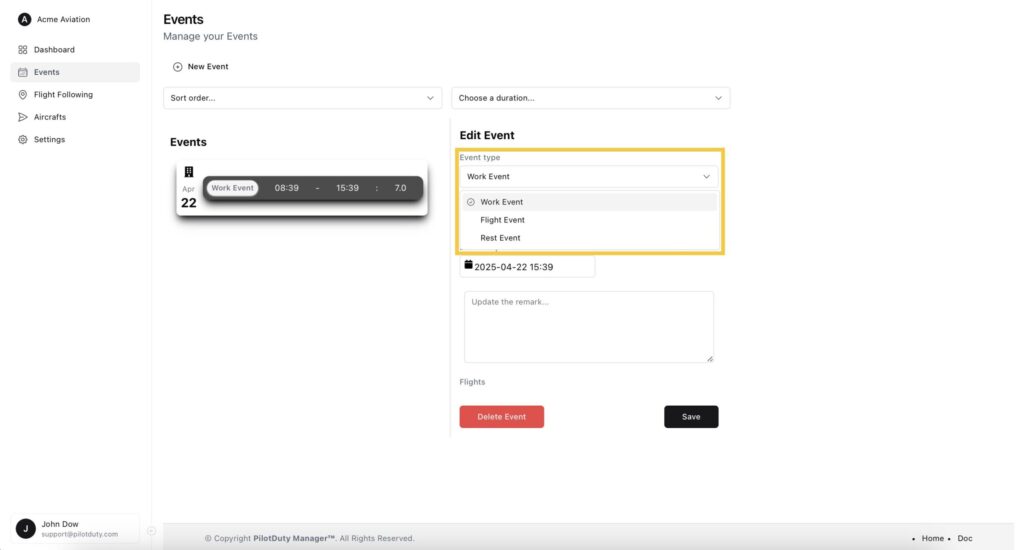
- Click on the event entry.
- In the “Edit Event” section, you can modify:
- Event type (e.g., switch between Work, Flight, or Rest)
- Start and Stop time
- Remarks
Don’t forget to hit Save after making changes.
Step 5: Add a Flight to a Flight Event #
If you selected Flight Event, a new section appears:
- Click New Flight and select the aircraft.
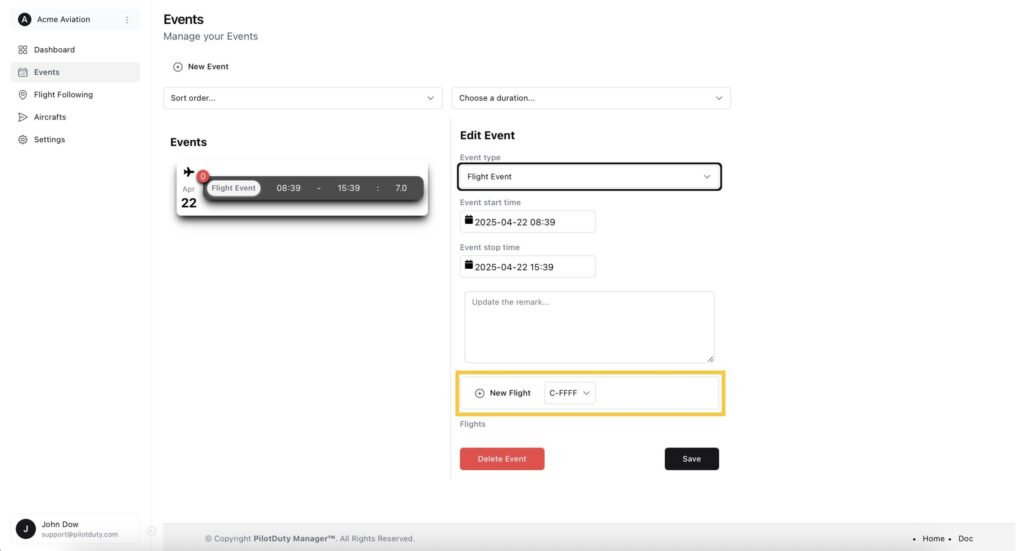
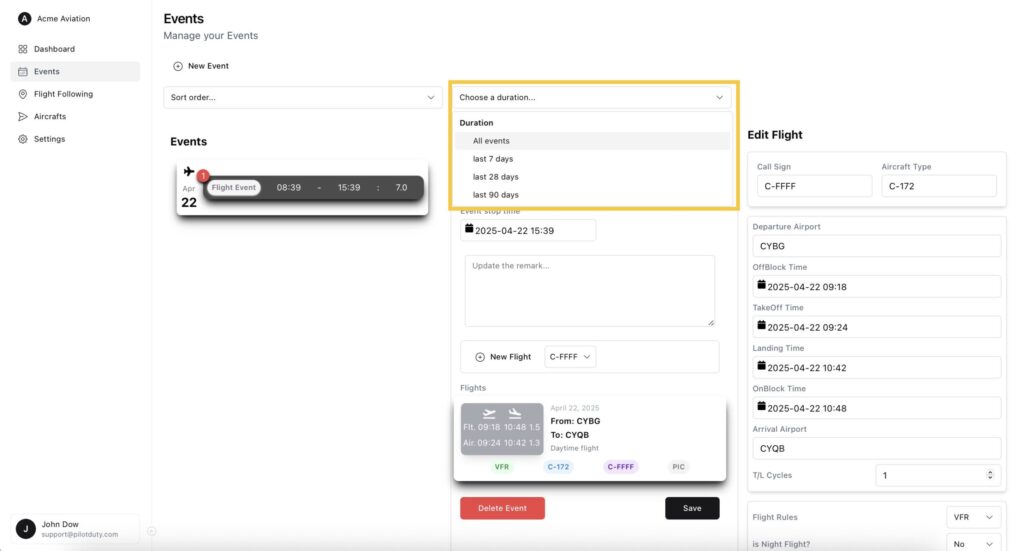
- The Edit Flight section opens on the right.
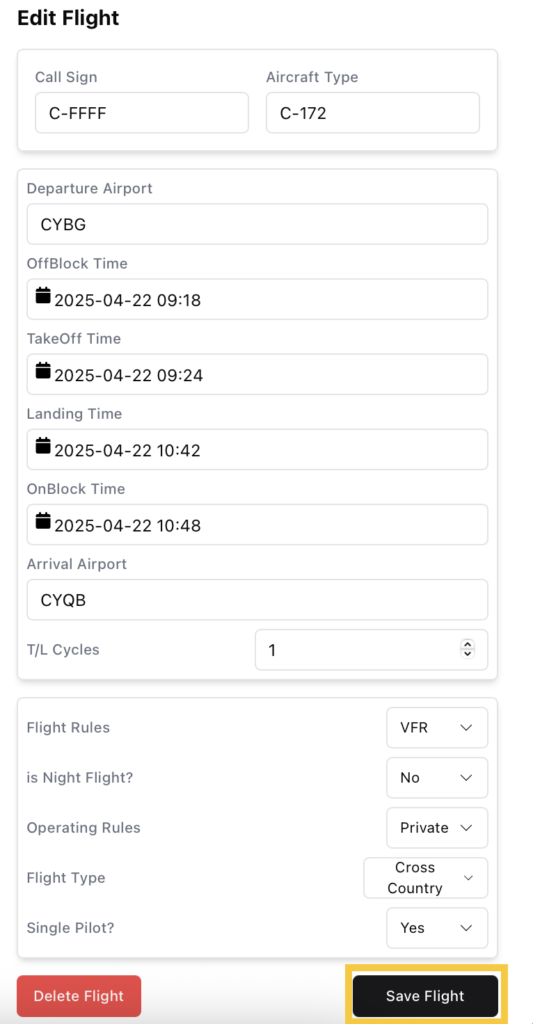
- Fill in the required details:
- Call Sign and Aircraft Type
- Departure and Arrival Airports
- OffBlock, Takeoff, Landing, OnBlock times
- T/L Cycles
- Flight Rules, Operating Rules, Flight Type, and Single Pilot?
Click Save Flight once done.
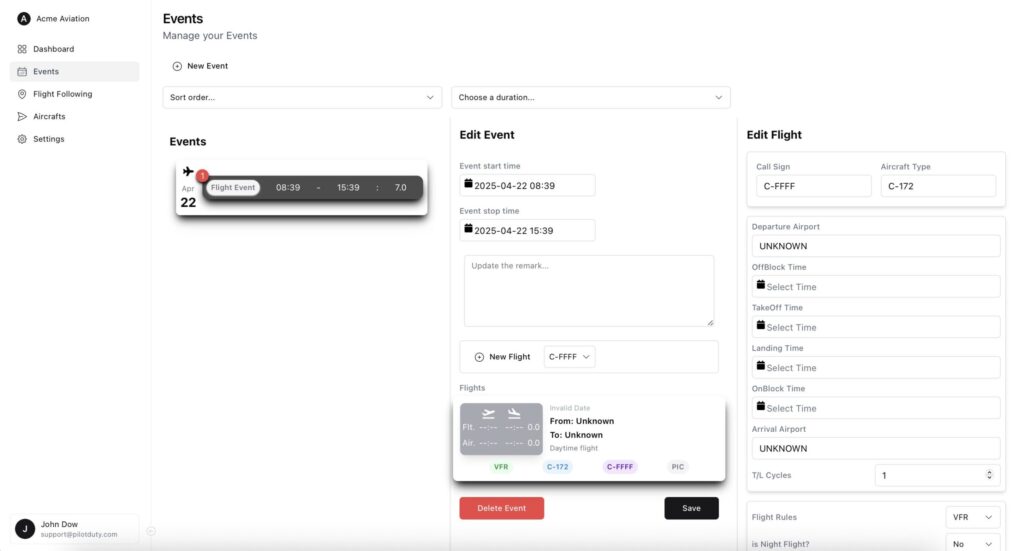
If no flight info is entered, you’ll see a blank placeholder like this:
Step 6: Sorting and Filtering Events #
You can filter and sort events by date and duration:
Sort order: Ascending / Descending
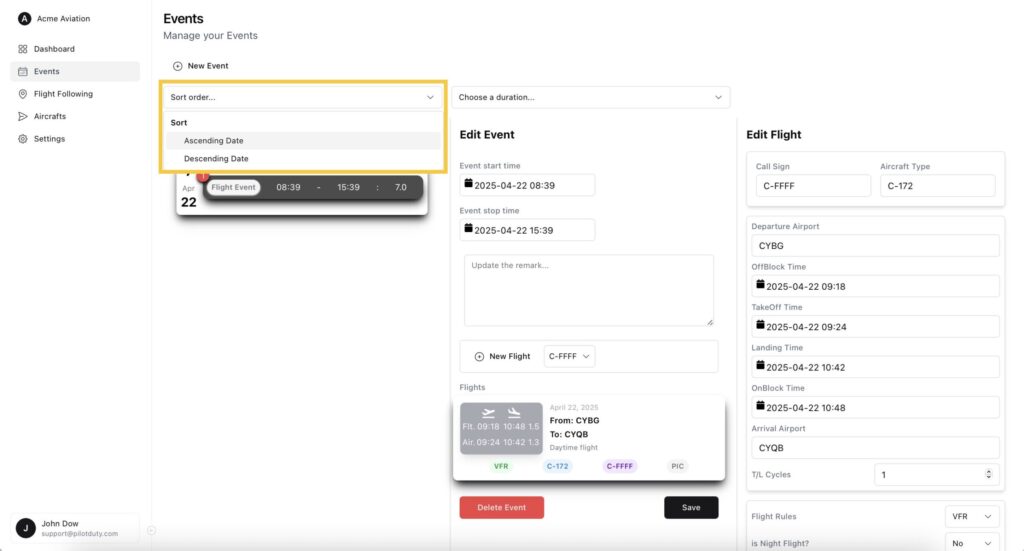
Duration: All events, last 7/28/90 days
You’ve now successfully created an event and added flight data in PilotDuty Manager.

