Skip to content
  • PilotDuty – App
  • PilotDuty Manager
  • Resources
    • Features
    • Blog
    • docs
    • FAQ
    • Terms Of Use
    • Privacy Policy
    • Cookie Policy
  • Shop
    • Shop
    • Cart
    • My account
  • Contact

Archives

  • June 2025
  • May 2025
  • March 2025

Categories

  • Application
  • Case Study
  • Technology

How can we help you?

🚀 Getting Started with PilotDuty Manager

  • Initial configuration (OnBoarding)

🔧 Setup Process of PilotDuty Manager

  • Edit User Profile
  • Edit organization profile
  • Add an Aircraft
  • Manage Organization Members
  • Manage Workshops
  • Manage Subscription

👨‍💻 Use of PilotDuty Manager

  • Creating Events and Flights in PilotDuty Manager
  • Start a New Inspection Process
  • Complete the pending inspection
  • Flight Following on PilotDuty Manager
View Categories
  • Home
  • Docs
  • PilotDuty Manager
  • 🔧 Setup Process of PilotDuty Manager
  • Manage Organization Members

Manage Organization Members

1 min read

📋 Manage Organization Members #

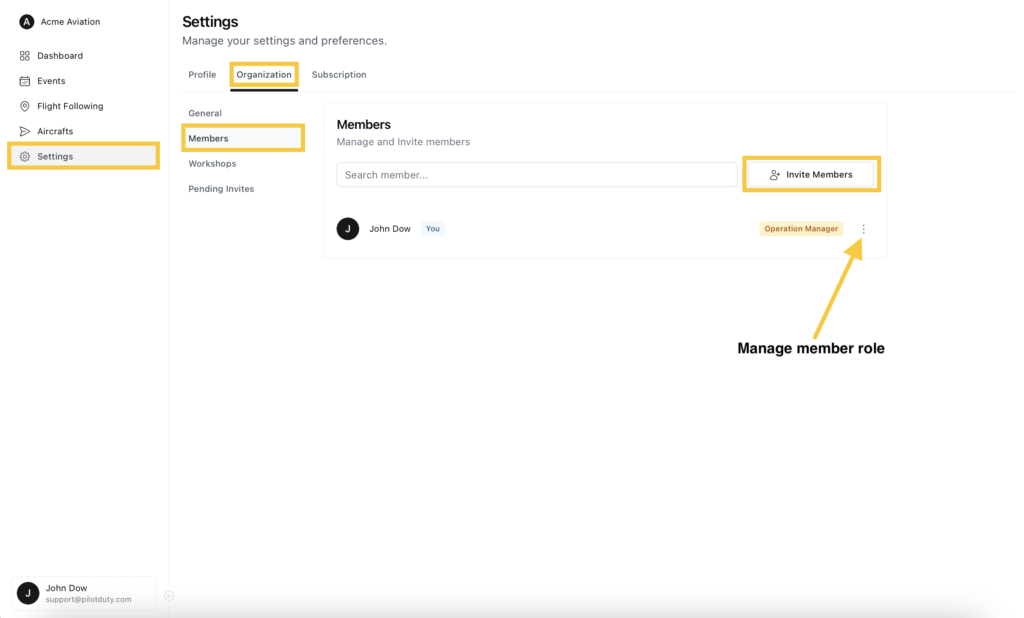
To add and manage users in your organization to effectively Manage Organization Members to ensure smooth operations., go to Settings > Organization > Members

In the Members view:

To add Members, click on Invite Members.

The label “You” indicates your own account

See all current users in your organization

Use the “three-dot” menu to change a member’s role or remove them
Manage Organization Members

🧑‍✈️ Invite a New Member #

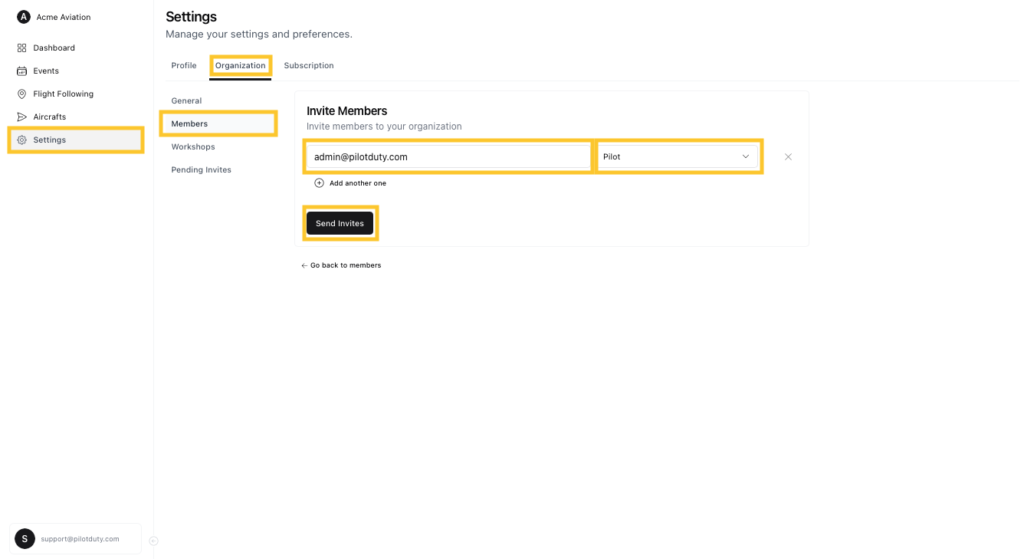
To invite a user:

  • Enter their email address
  • Select their role (Pilot, Chief Pilot, Maintenance Manager, Operation Manager)
  • Click Send Invites

Invited users will receive an email and can join your organization instantly.
Invite Member Filled

⚠️ Subscription Required to Add Members #

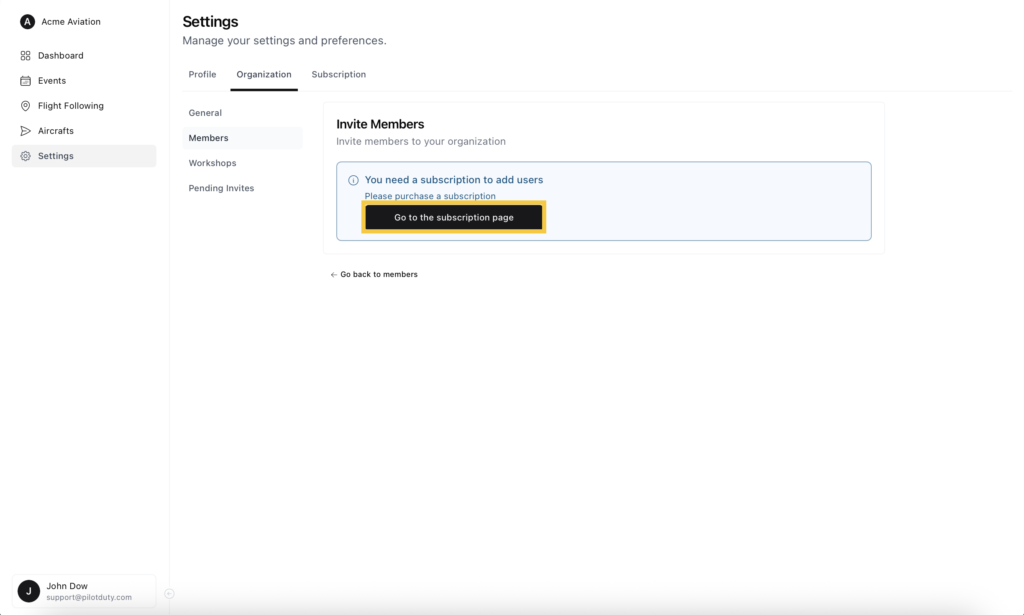
To invite users, your organization must have an active subscription.

If you try to invite someone without a subscription, you’ll be prompted to go to the Subscription page.
Invite Members Warn


📬 Manage Pending Invites
#

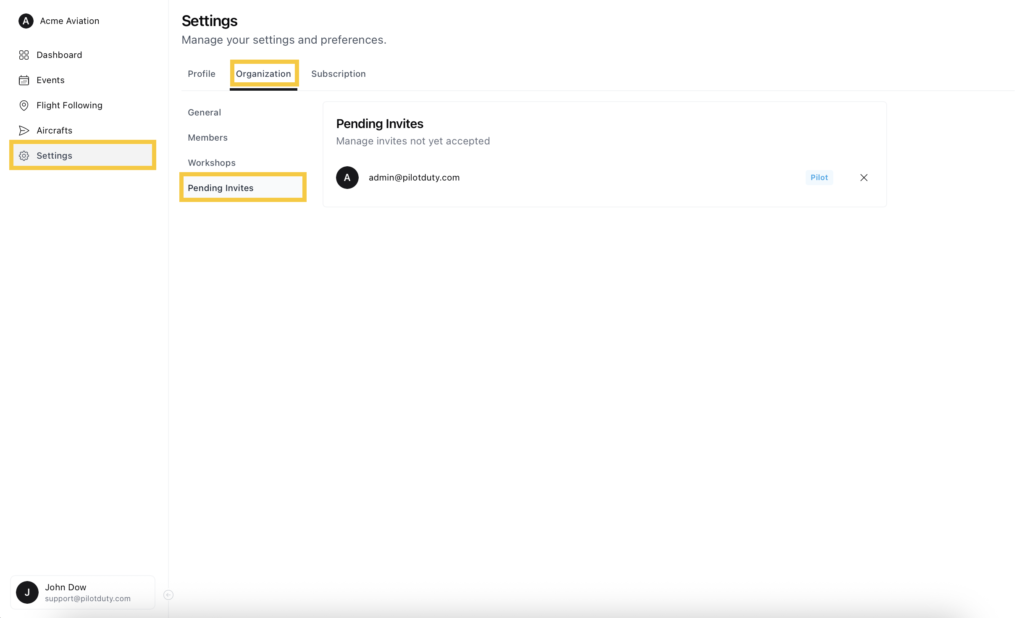
All invites that haven’t been accepted yet will appear under Pending Invites.

From here, you can:

Cancel an invitation if needed

View the status of each invitation
Pending Invites

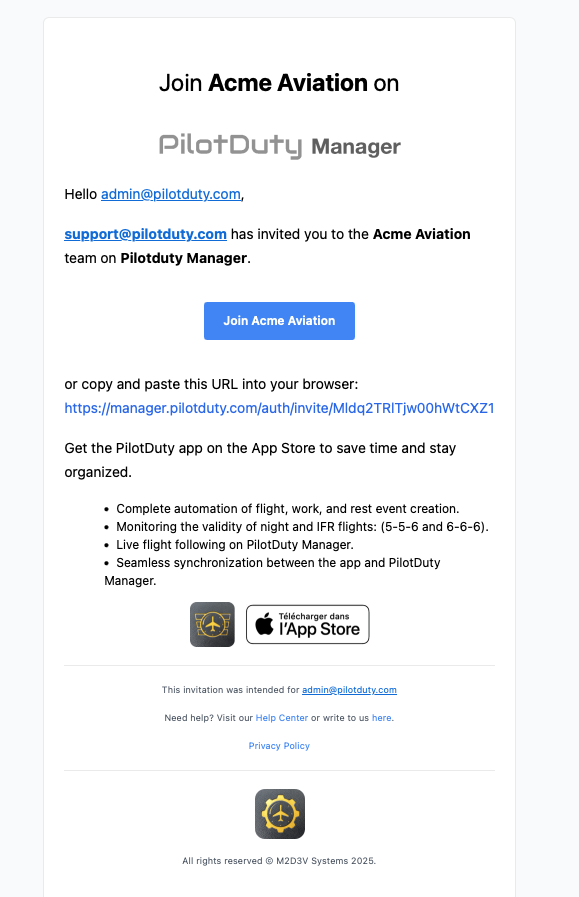
✉️ What the Invite Email Looks Like #

Here’s an example of the email your invitees will receive.

It includes:

  • The name of your organization
  • A direct link to accept the invitation
  • App download links and feature highlights

The invitation is valid until accepted. Once clicked, the user will be added to your team.
Invite Mail
What are your Feelings

Share This Article :

  • Facebook
  • LinkedIn
Still stuck? How can we help?

How can we help?

Updated on June 12, 2025
Add an AircraftManage Workshops

Leave a Reply Cancel reply

Your email address will not be published. Required fields are marked *

Table of Contents
  • 📋 Manage Organization Members
  • 🧑‍✈️ Invite a New Member
  • ⚠️ Subscription Required to Add Members
  • 📬 Manage Pending Invites
  • ✉️ What the Invite Email Looks Like

ABOUT PilotDuty


PilotDuty® is the only fully automatic flight logbook for general aviation pilots — featuring iBeacon-based flight tracking, SMS flight following, and aircraft maintenance monitoring. Trusted by aviation professionals across North America.

QUICK LINKS

  • PilotDuty – App
  • PilotDuty Manager
  • Contact Us
  • Shop

CONTACT US

Feel free to contact & reach us !

Address : Mascouche, Qc Canada
Email : support@pilotduty.com
Phone : 1 (888) 969-2594

RESOURCES

  • FAQ
  • Docs
  • Blog
  • Terms Of Use
  • Privacy Policy
  • Refund and Returns Policy
  • Cookie Policy
Copyright © 2026 PilotDuty. Powered by M2D3V