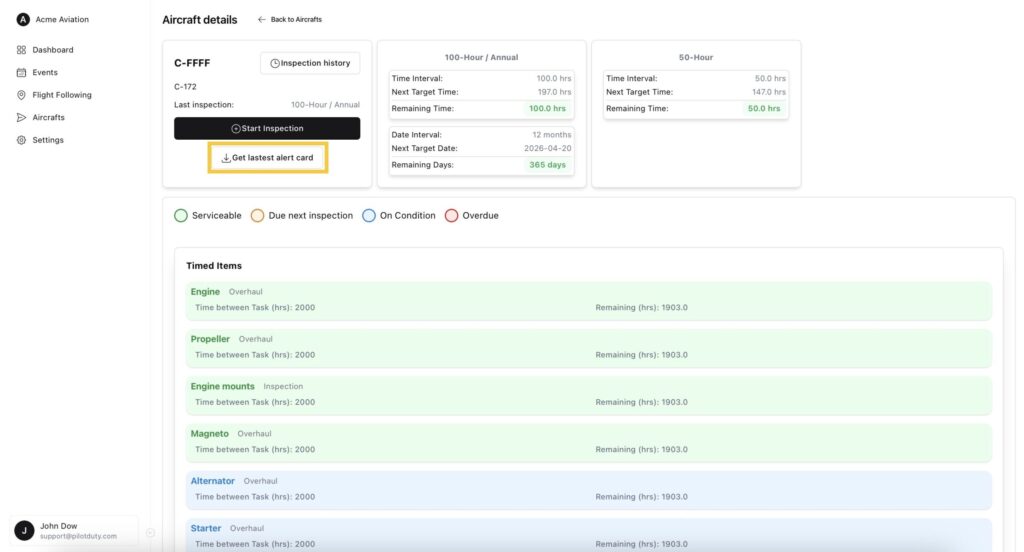
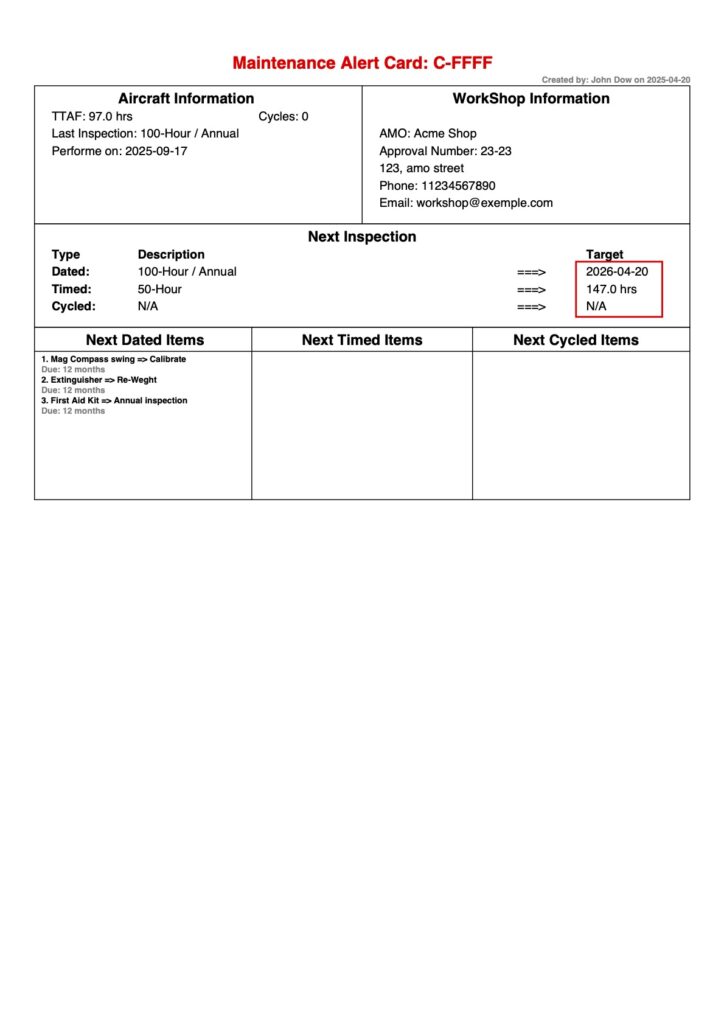
Once your AMO has completed the inspection physically, follow these steps to finalize it in PilotDuty Manager and store the required documentation.
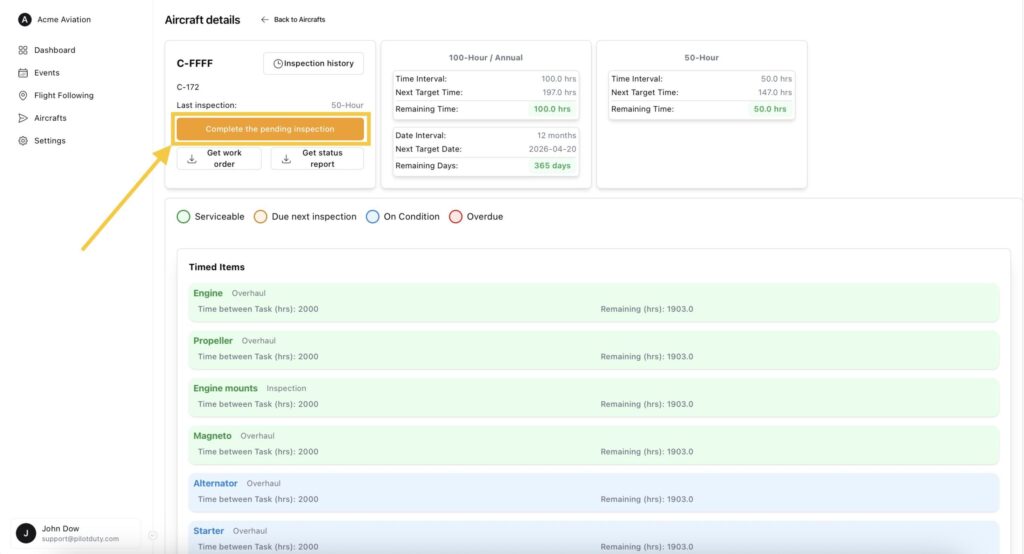
✅ Step 1 – Open the inspection completion modal #
From the aircraft details page, click the orange button labeled:
“Complete the pending inspection”
This action is only available if an inspection was previously started but not finalized.
📁 Step 2 – Upload the required documents #
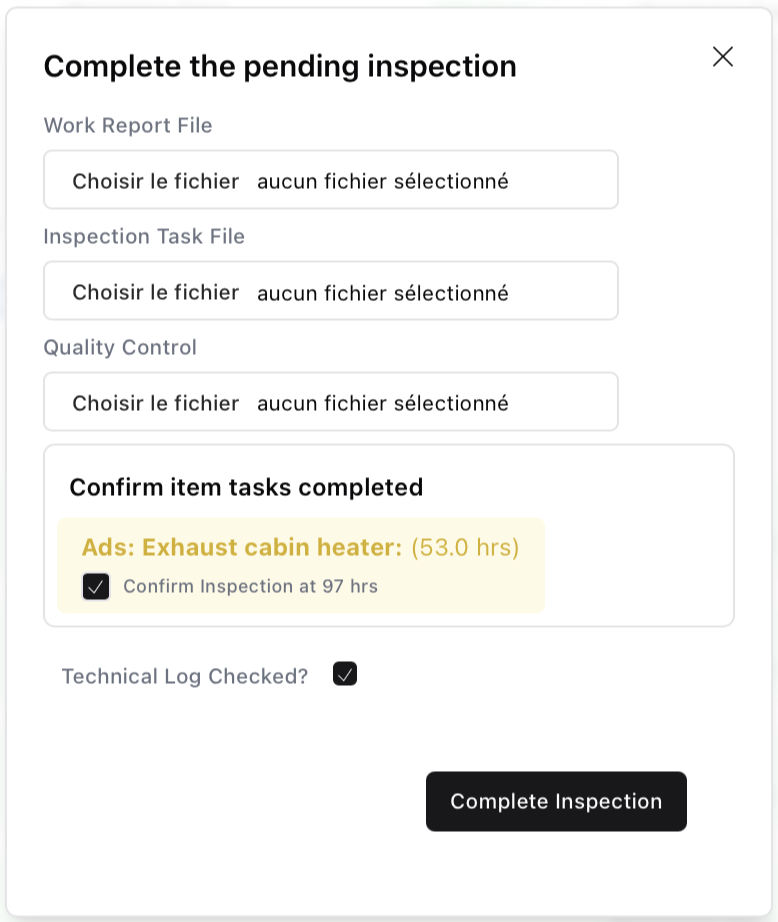
In the modal that appears:
Check the “Technical Log Checked?” checkbox if applicable
(Optionally) Upload the following three files provided by your AMO:
- Work Report
- Inspection Task File
- Quality Control Report
Confirm the completion of each item task
📦 Step 3 – Finalize and store #
Click “Complete Inspection” to:
Allow generation of the Alert Card
Save the inspection to the aircraft’s history
Update all due time counters (air time, cycles, etc.)
🔔 Get latest alert card #
You can now click “Get latest alert card” to download .