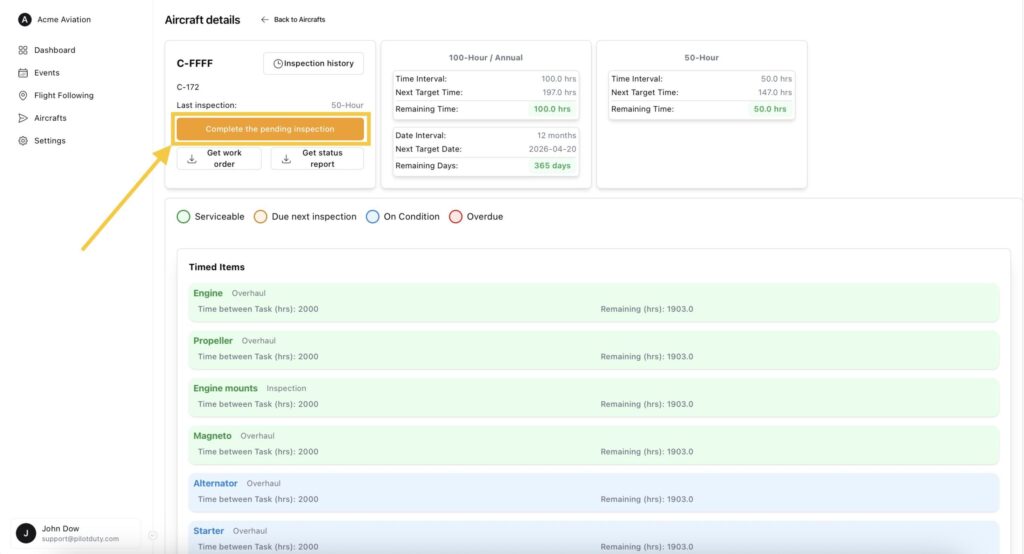
To effectively Start a New Inspection Process, ensure your aircraft remains compliant and safely maintained by creating and logging inspections directly from the Aircraft section.
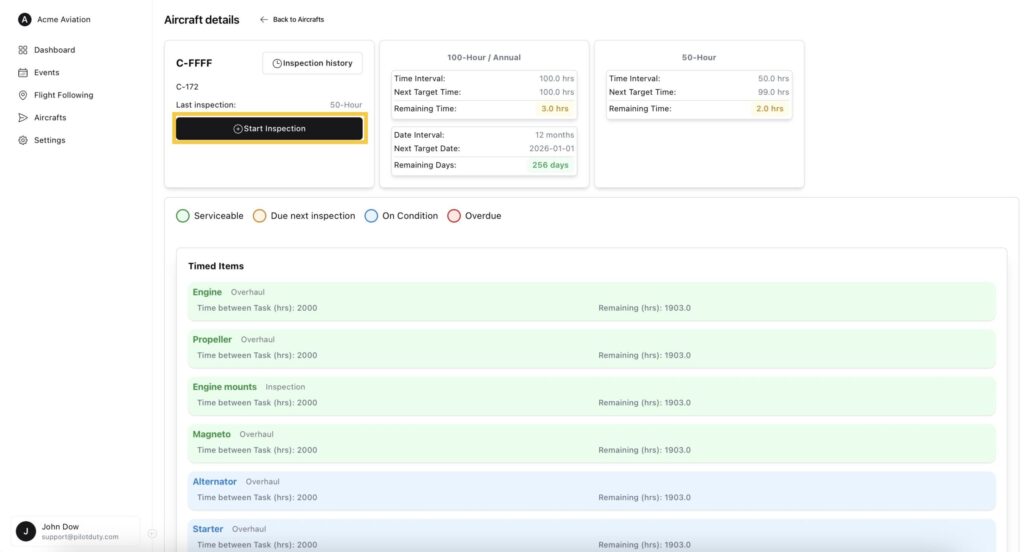
Go to aircraft tab, select an aircraft and click Start Inspection next to the desired schedule (e.g., 50-Hour or 100-Hour/Annual).
🧭 Overview and Inspection Selection #
The inspection interface shows:
- Last inspection
- Upcoming scheduled inspections
- List of task with their statuses (Timed, Dated and Cycled)
Click Start Inspection to launch the inspection process.
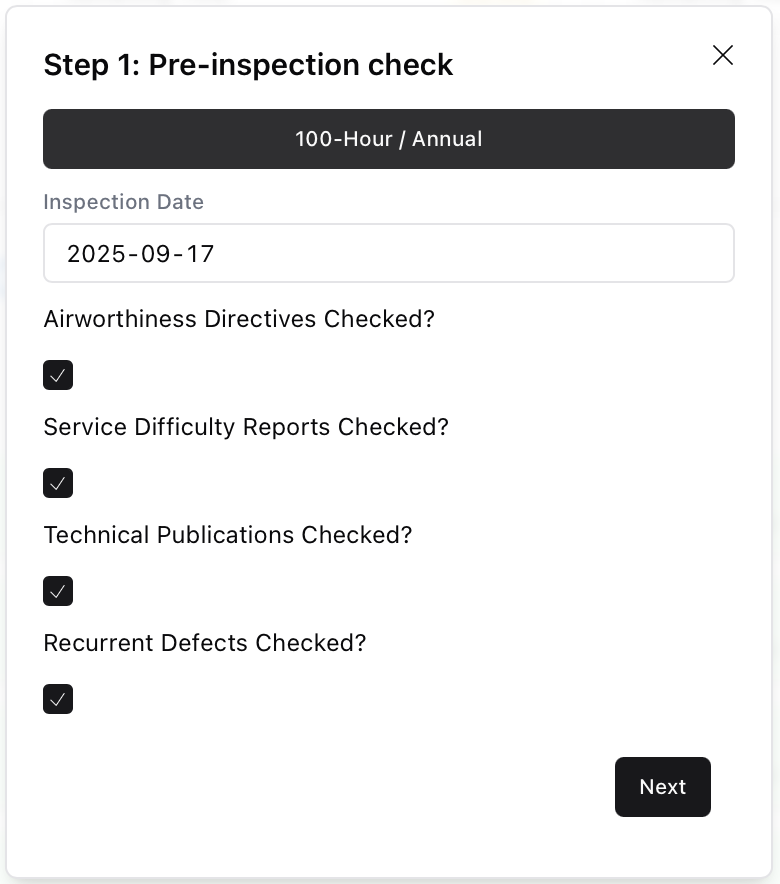
✅ Step 1 — Confirmation of Pre-Check #
Pilotduty Manager calculates the most efficient upcoming inspection schedule for you, but you can choose the one of your choice. You can also opt for ‘Custom Task’ in case you want to produce a work order for specific tasks outside of an inspection process. e.g.: Altimeter recertification, transponder recertification, ELT recertification…
You’ll be asked to confirm:
- Inspection type
- Inspection date
- That all required documentation has been reviewed (ADs, SDRs, etc.)
Click Next to proceed.
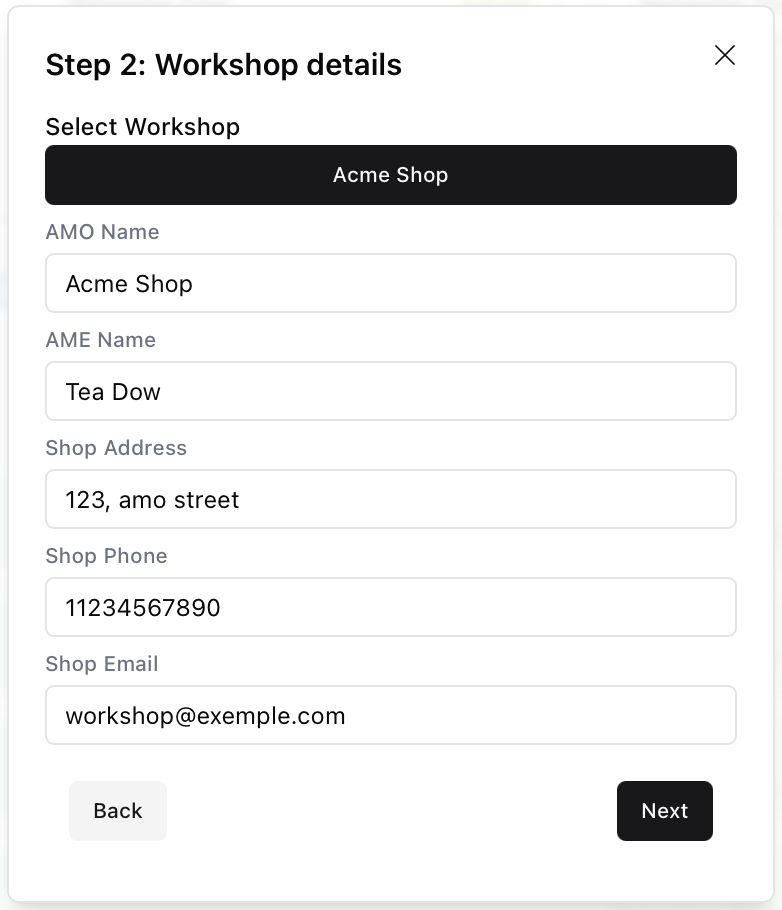
🧾 Step 2 — Workshop Information #
Fill in the details of the maintenance provider:
- AMO/AME Name
- Contact information
- Address of the workshop
These fields may be prefilled if the workshop is already registered.
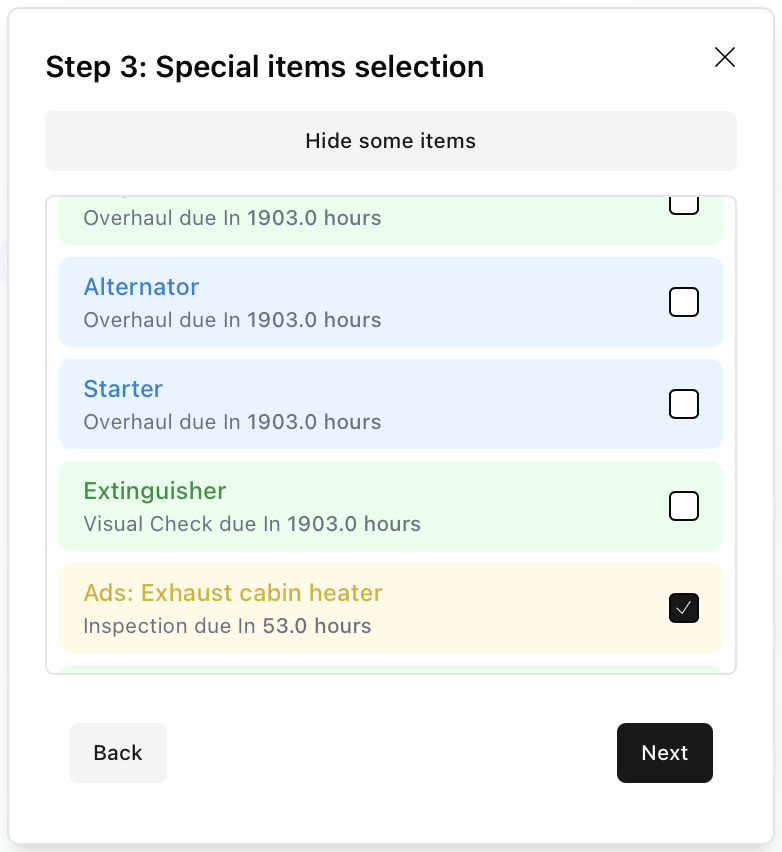
🧰 Step 3 — Task Selection #
You can select individual timed, dated, or cycled items that were also completed during this inspection.
This allows you to update multiple task logs in a single submission.
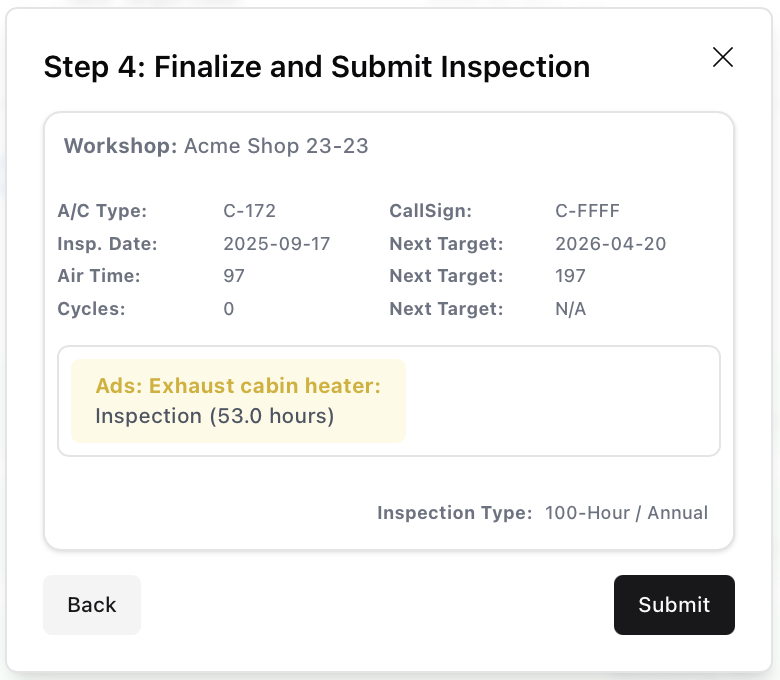
📝 Step 4 — Review and Submit #
A full summary is shown:
- Aircraft details
- Inspection type
- Tasks selected for update
Click Submit to log the inspection and update all related tracking data.
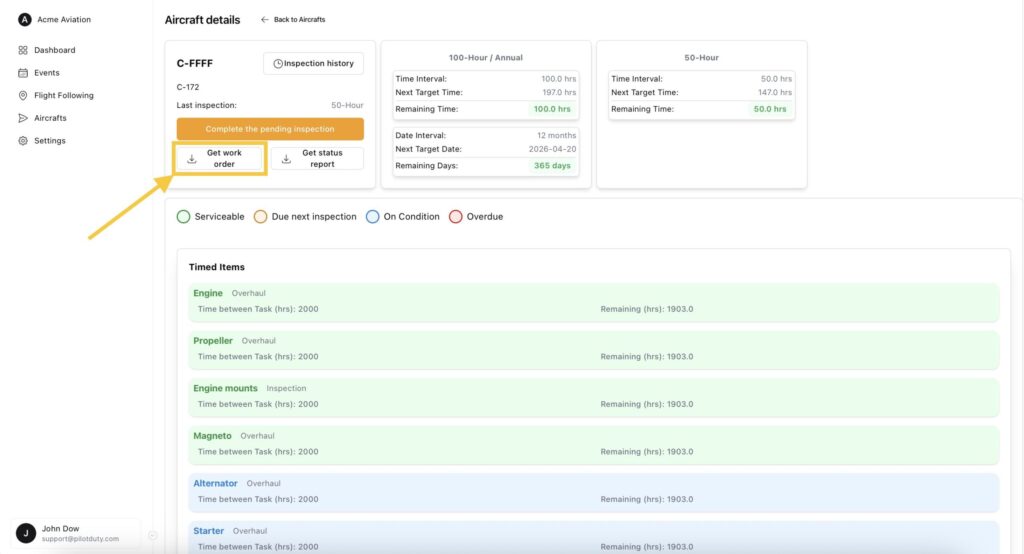
Get Work order #
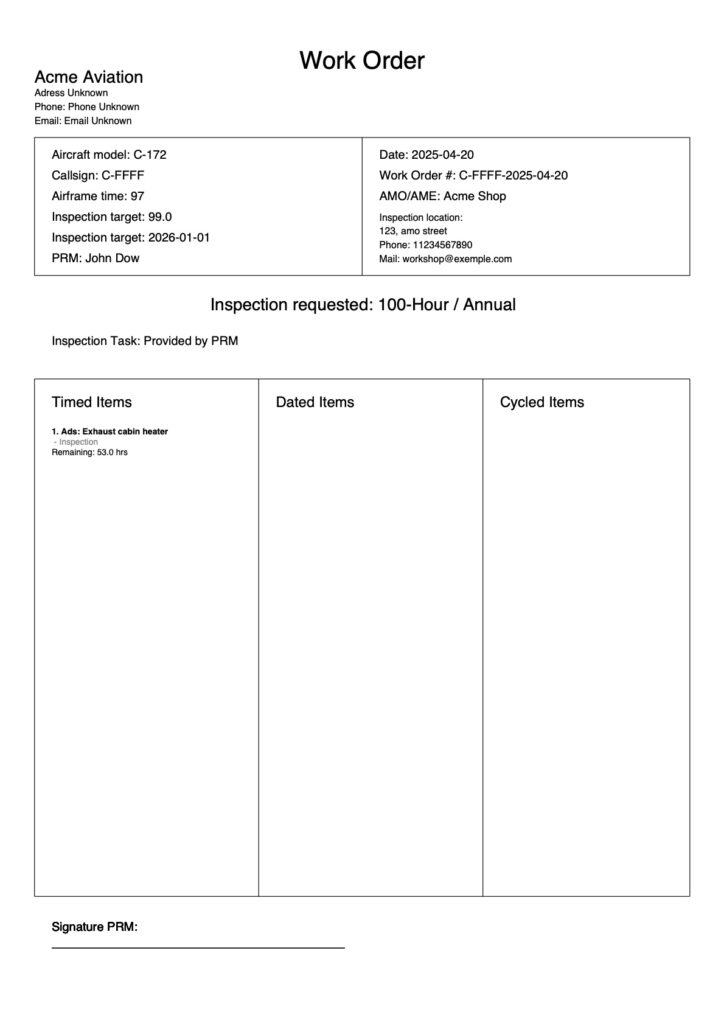
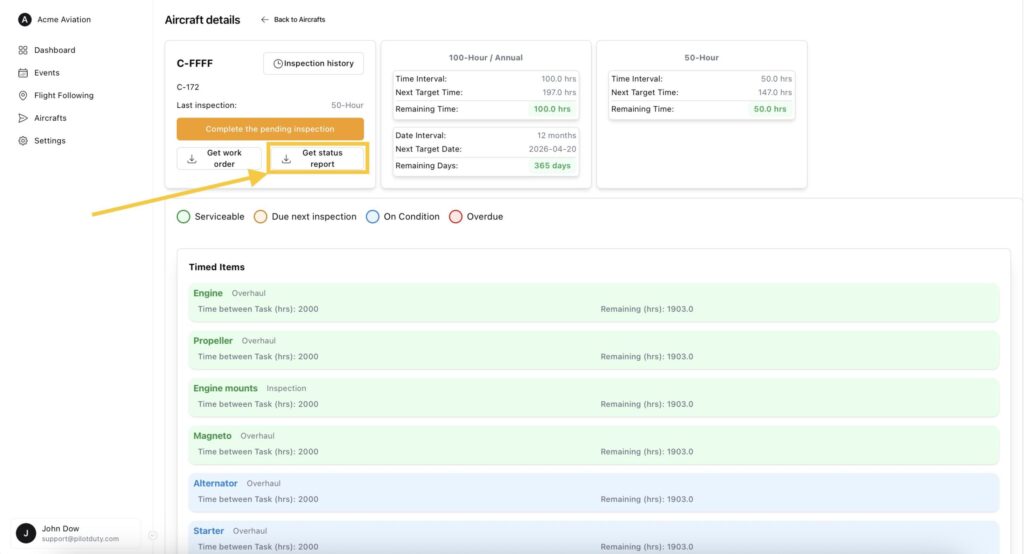
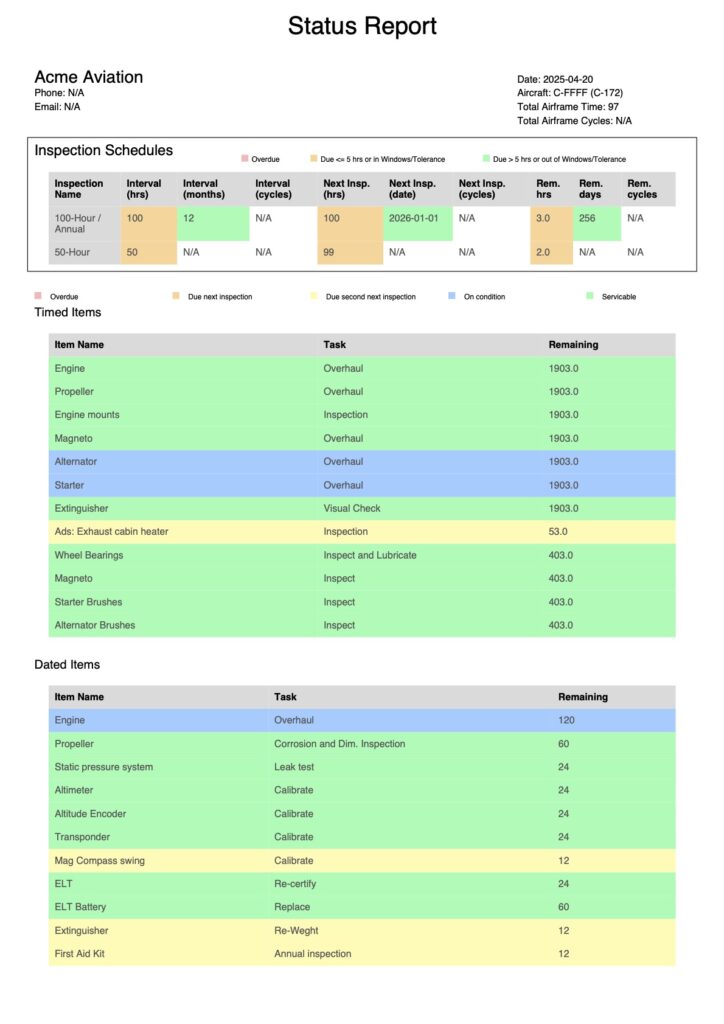
Once the inspection process is completed, 2 new buttons appear: “Work Order” and “Status Report”.
Click on Get work order
Get Status Report #
Once the inspection process is completed, 2 new buttons appear: “Work Order” and “Status Report”.
Click on Get status report
Next step after inspection is completed
Go to documentation