
You can register and manage your aircraft fleet directly in PilotDuty Manager.
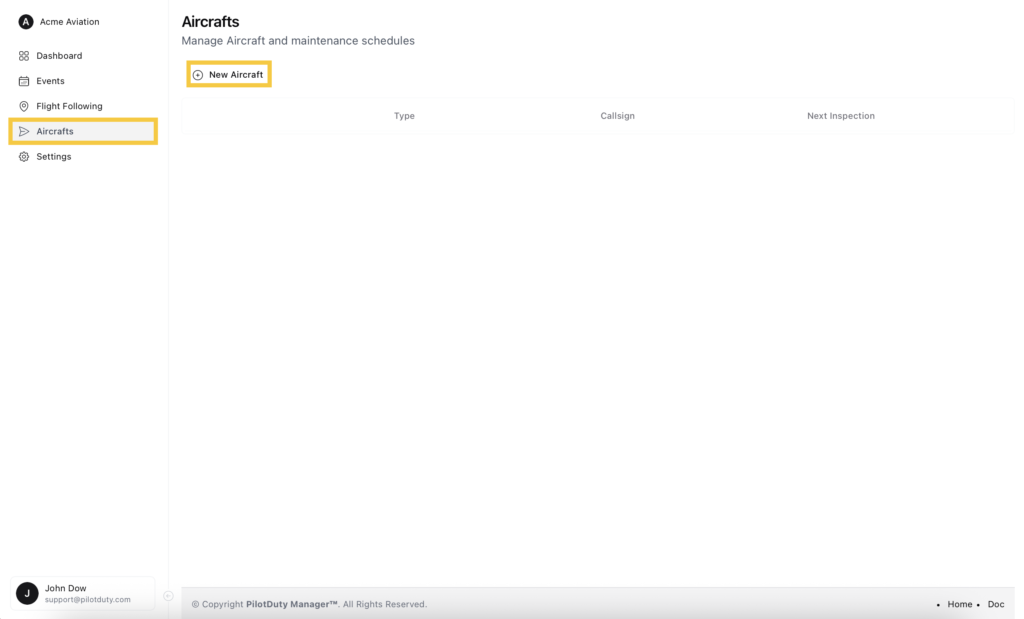
To begin, go to Aircrafts in the left-hand navigation menu.
➕ Click “New Aircraft” #
Click the New Aircraft button to start adding a new aircraft to your organization. To successfully manage your fleet, make sure to Add an Aircraft.
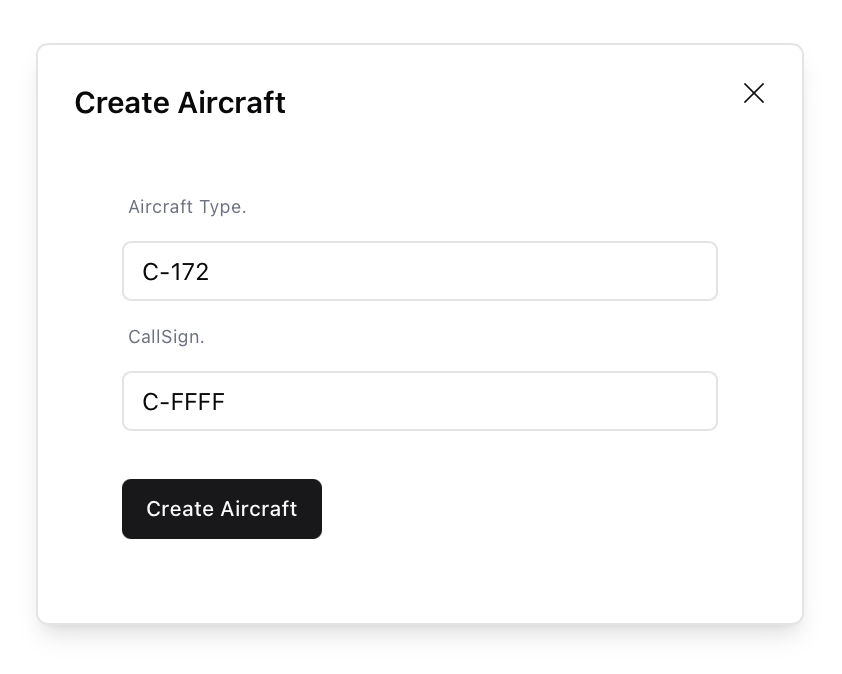
🛩 Fill Aircraft Details #
A modal will open. Fill in the following required fields:
- Aircraft Type (e.g., C-172)
- Callsign (e.g., C-FFFF)
Then click Create Aircraft.
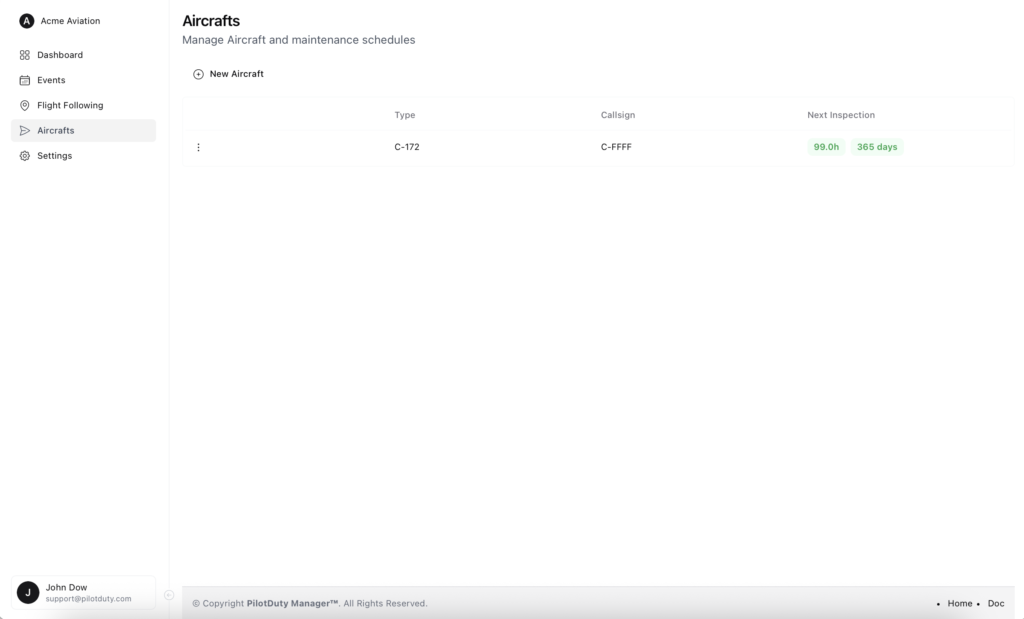
📋 View Your Aircraft List #
Once created, the aircraft will appear in the list with its type, callsign, and next scheduled inspection indicators (hours/days remaining).
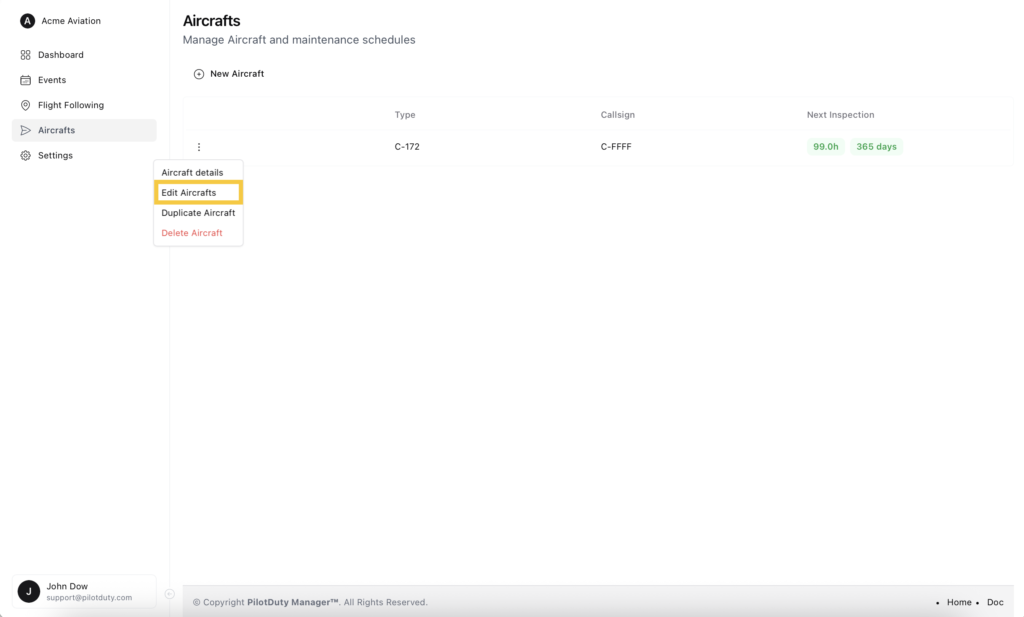
⚙️ Edit Aircraft Details
Click the three-dot menu beside the aircraft, then select Edit Aircrafts.
This will bring you to the full aircraft profile where you can manage all technical and operational information.
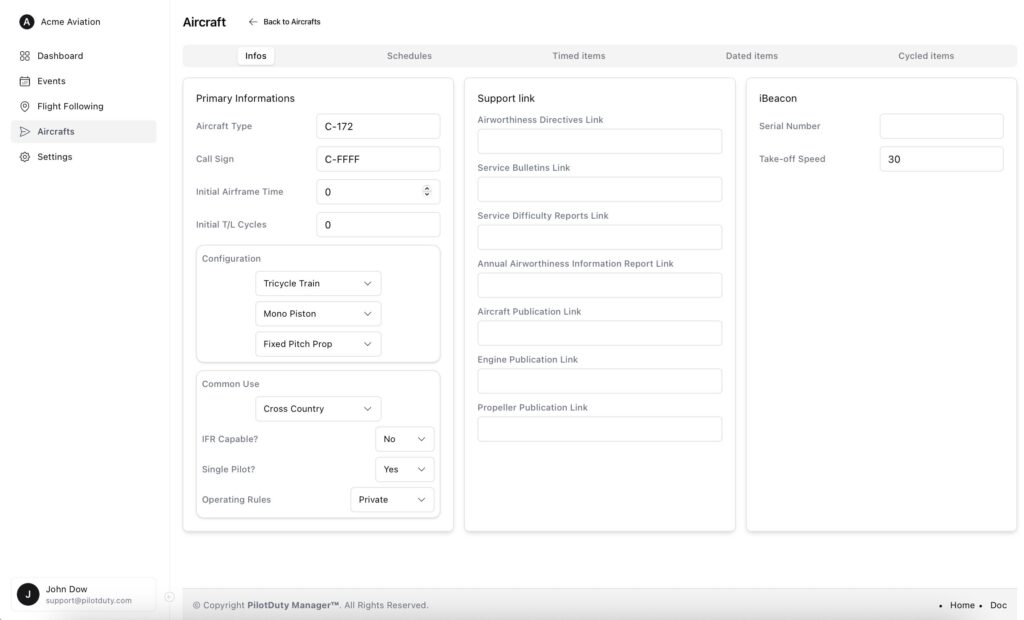
🧾 Aircraft Info Panel #
In the Infos tab, you can configure:
- Initial airframe time and cycles
- Aircraft configuration (landing gear, engine type, propeller type)
- Use type (cross-country, training, etc.)
- IFR and single-pilot capabilities
- Regulatory rules (e.g., Private or Commercial)
- Optional publication and support document links
- Optional iBeacon settings (serial and takeoff speed)
🛠 Scheduled Maintenance #
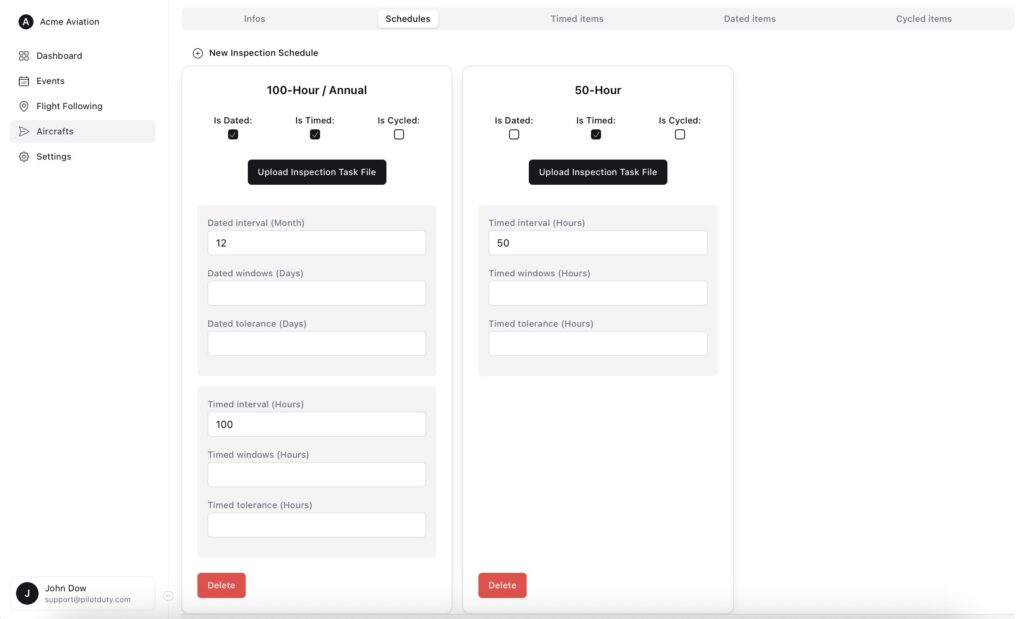
The Schedules tab includes default maintenance inspections like:
- 100-hour / Annual
- 50-hour inspection
These inspections are automatically preconfigured when the aircraft is created. You can adjust the date/time intervals and tolerances as needed. You can also adjust the intervals for progressive inspections.
🕐 Timed Maintenance Items #
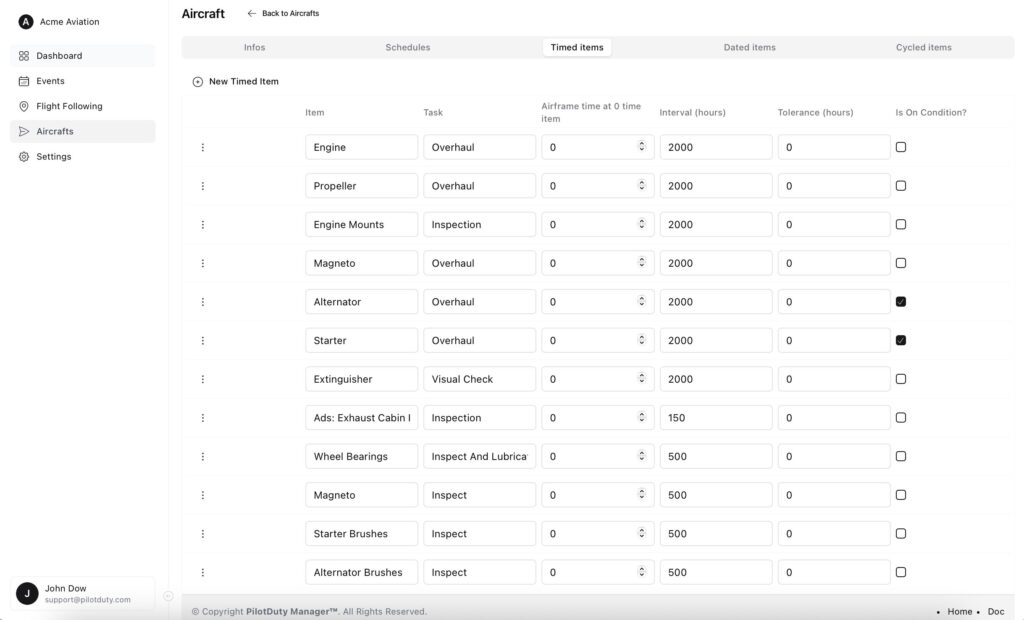
The Timed Items tab contains maintenance tasks triggered by total airframe time (in hours).
Each line includes:
- Item – Part or system (e.g., Engine, Magneto)
- Task – Type of maintenance (e.g., Overhaul, Inspect)
- Airframe time at 0 – Initial reference point (usually 0)
- Interval (hours) – After how many hours the task recurs
- Tolerance – Accepted leeway before or after due time
- Is On Condition? – Mark if the item is maintained “on condition” rather than on a strict interval
🛠 These items are auto-generated when an aircraft is created, based on common general aviation practices. You can customize or remove them as needed.
🗓 Dated Maintenance Items #
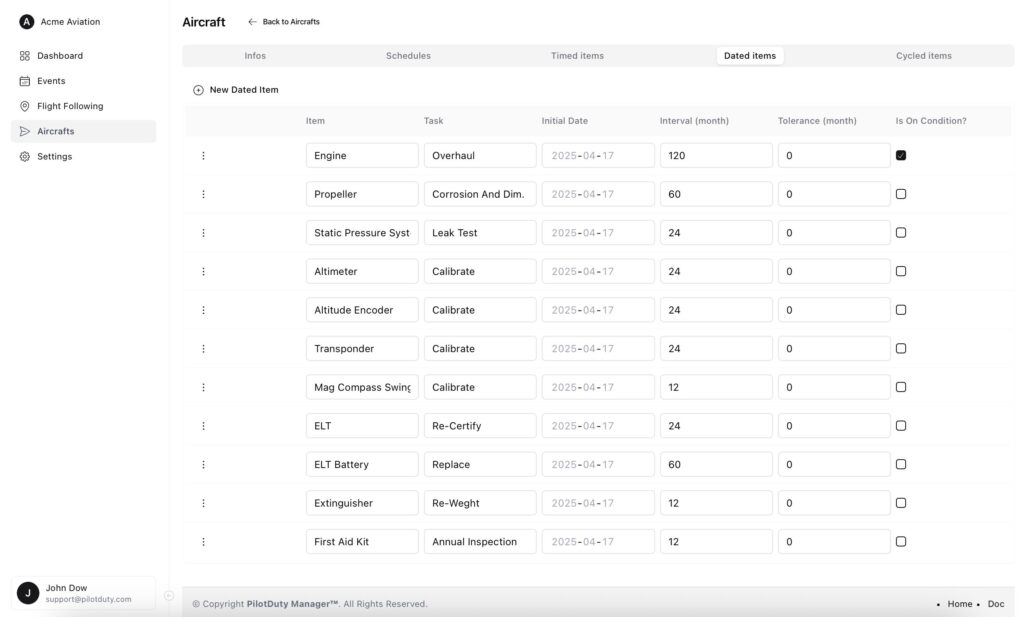
The Dated Items tab includes calendar-based recurring tasks (e.g., ELT recertification, altimeter checks).
Each task includes:
- Item – Part or system (e.g., Engine, Propeller)
- Task – Type of maintenance (e.g., Overhaul, Inspect)
- Interval and tolerance (in months)
- Is On Condition? – Mark if the item is maintained “on condition” rather than on a strict interval
🛠 These items are auto-generated when an aircraft is created, based on common general aviation practices. You can customize or remove them as needed.
🔁 Cycled Maintenance Items #
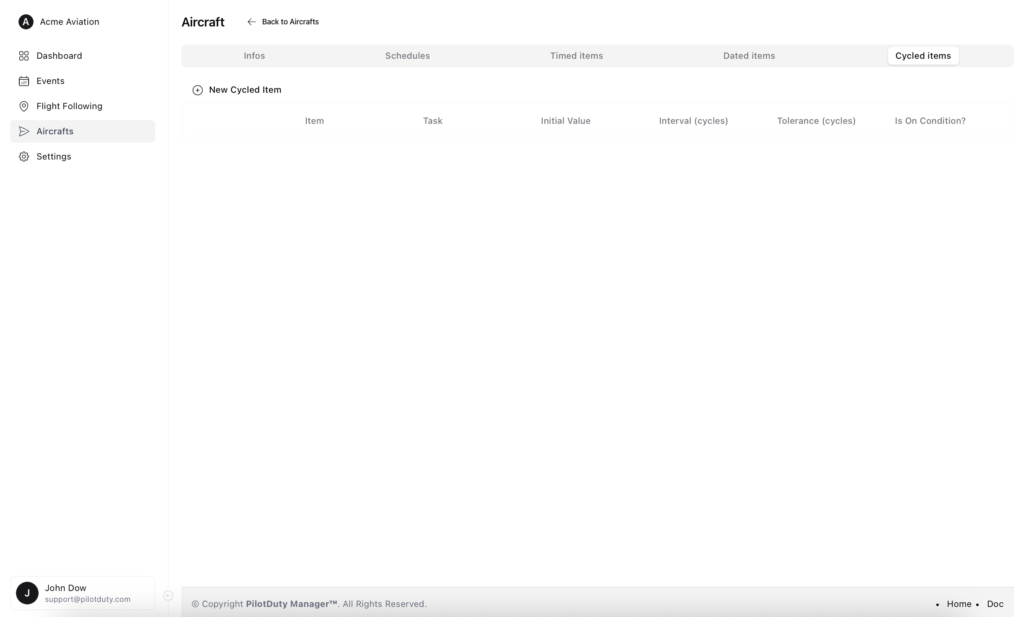
The Cycled Items tab includes tasks tracked by flight cycles (e.g., gear inspections).
You can set:
- Item – Part or system (e.g., Gear, brake)
- Task – Type of maintenance (e.g., Overhaul, Inspect)
- Interval and tolerance (in cycles)
- “On condition” flag if applicable
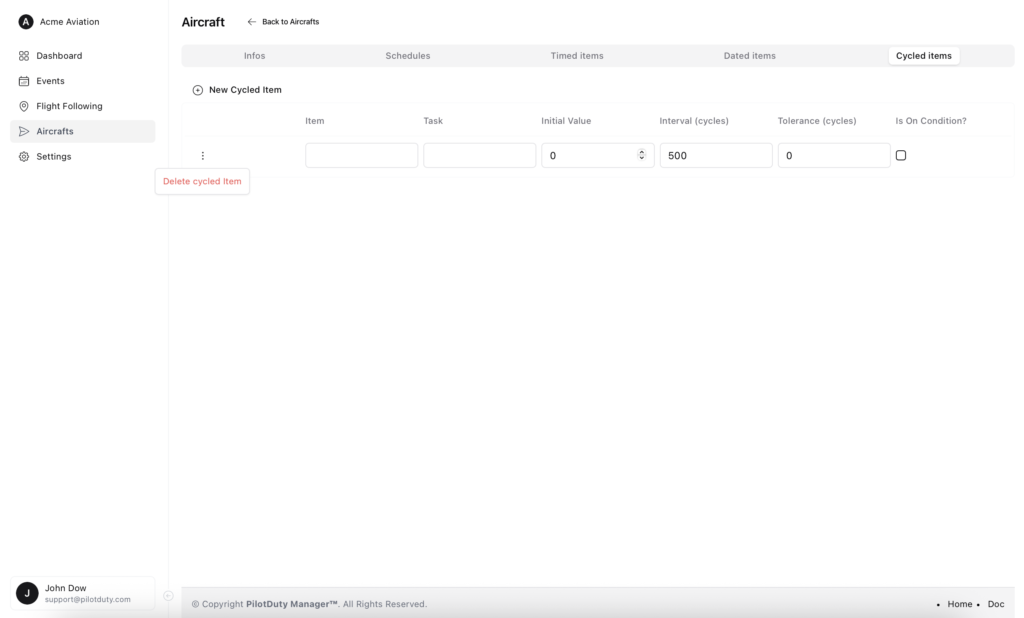
Use the three-dot menu to delete an item if needed.
🧪 Create Initial Inspection #
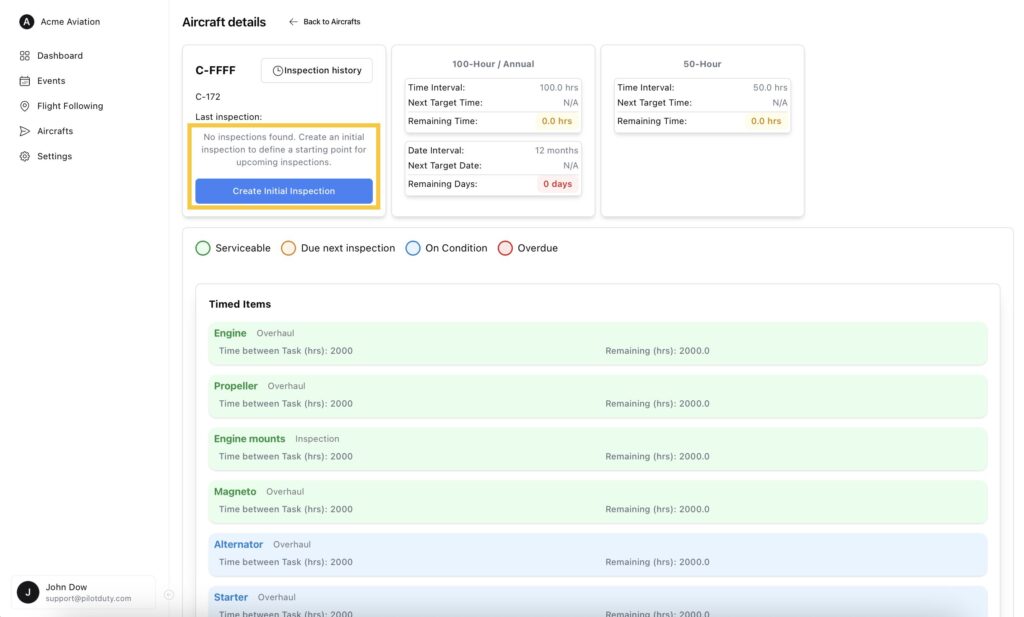
Once your aircraft has been configured, you must create an initial inspection for each schedule (e.g., 100-hour, 50-hour).
This defines the starting point from which all future inspections will be calculated.
Click Create Initial Inspection to set the current time and/or date as the reference.
✅ Step 1: Pre-Inspection Check #
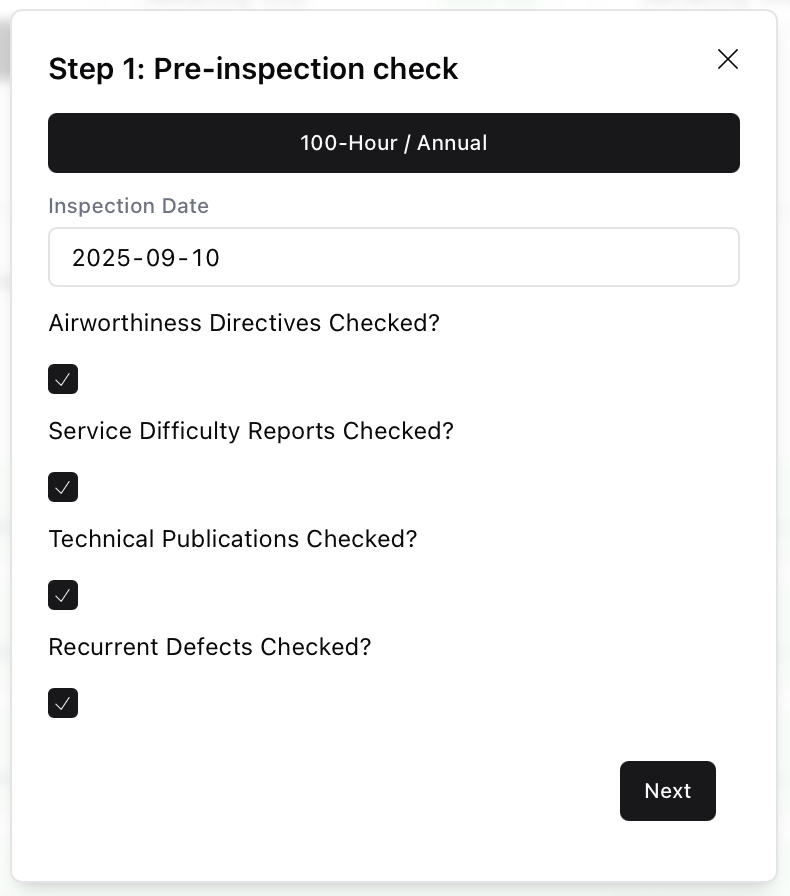
Select the inspection type (e.g., 100-Hour / Annual) and enter the inspection date.
Confirm that the following documents were checked:
- Airworthiness Directives
- Service Difficulty Reports
- Technical Publications
- Recurrent Defects
Click Next.
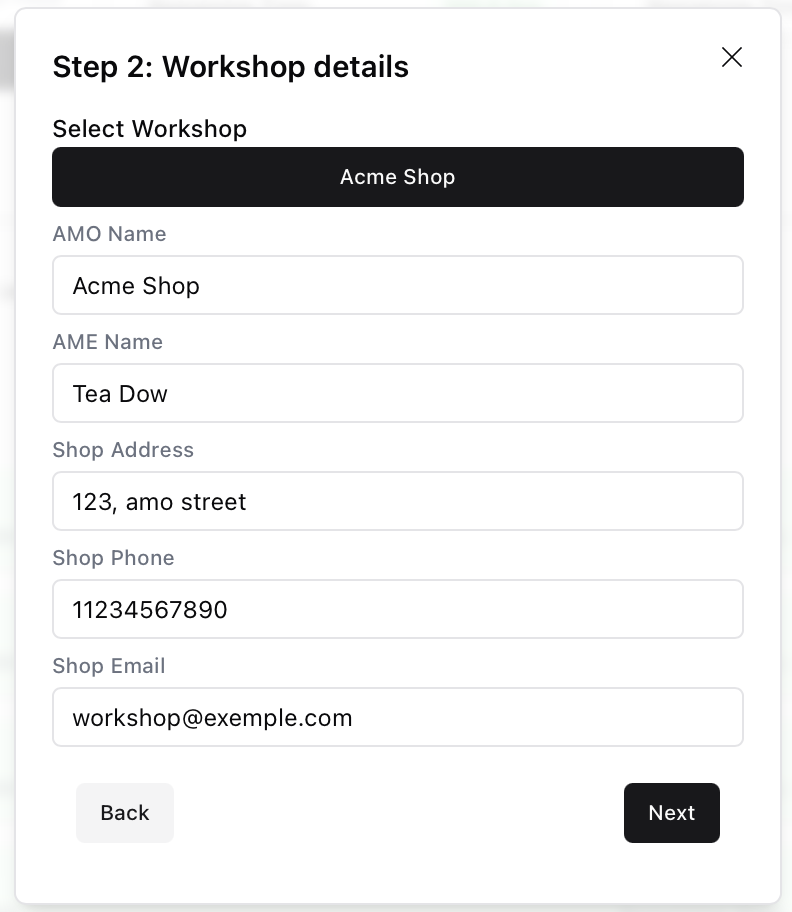
🧰 Step 2: Workshop Details #
Fill in or confirm your workshop details:
- AMO Name and AME Name
- Address, phone, and email
These values are auto-filled if your AMO is already registered. Click Next.
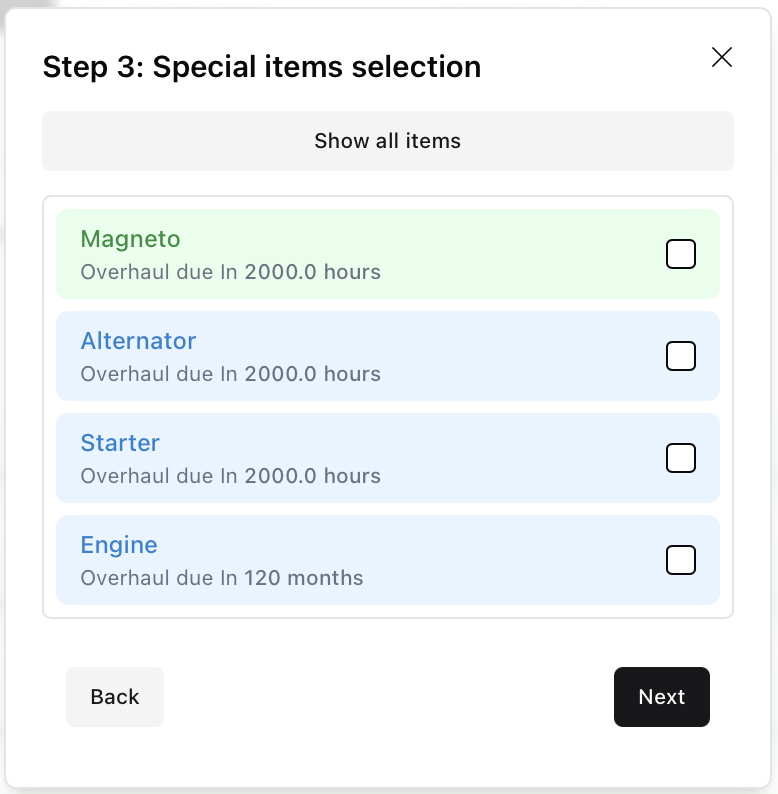
🔎 Step 3: Special Item Selection #
Optionally, select any special items (e.g., dated, cycled or timed tasks) that were completed during this inspection.
This ensures they are marked as serviced and resets their countdown.
📤 Step 4: Finalize and Submit #
Review the full summary:
- Aircraft type, callsign, air time, cycles
- Workshop name and inspection type
- Target dates and upcoming intervals
Click Submit to confirm and register the inspection.
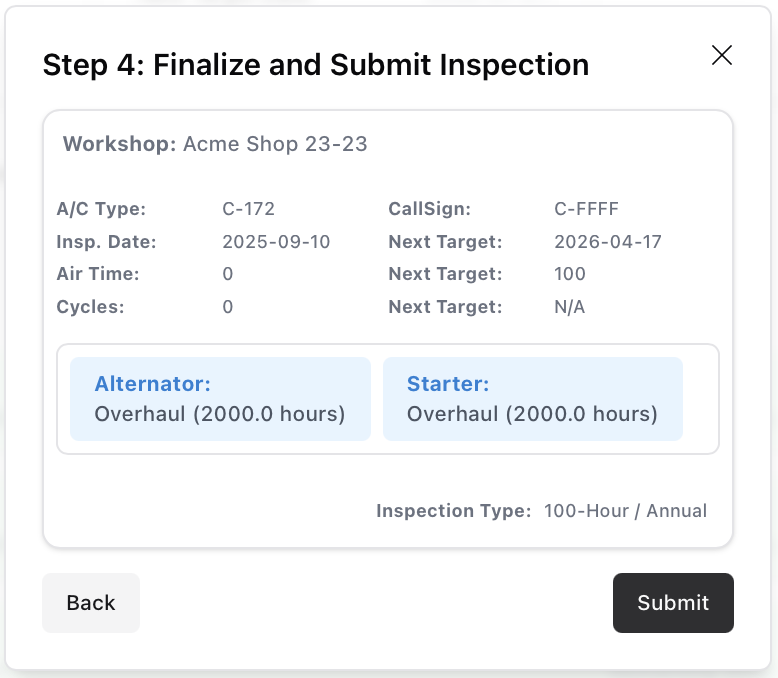
✅ Once submitted, this inspection becomes the reference point for future maintenance tracking and overdue alerts.
⚠️ Repeat for each schedule

