Skip to content
  • PilotDuty – App
  • PilotDuty Manager
  • Resources
    • Features
    • Blog
    • docs
    • FAQ
    • Terms Of Use
    • Privacy Policy
    • Cookie Policy
  • Shop
    • Shop
    • Cart
    • My account
  • Contact

Archives

  • June 2025
  • May 2025
  • March 2025

Categories

  • Application
  • Case Study
  • Technology

How can we help you?

🚀 Getting Started with PilotDuty Manager

  • Initial configuration (OnBoarding)

đź”§ Setup Process of PilotDuty Manager

  • Edit User Profile
  • Edit organization profile
  • Add an Aircraft
  • Manage Organization Members
  • Manage Workshops
  • Manage Subscription

👨‍💻 Use of PilotDuty Manager

  • Creating Events and Flights in PilotDuty Manager
  • Start a New Inspection Process
  • Complete the pending inspection
  • Flight Following on PilotDuty Manager
View Categories
  • Home
  • Docs
  • PilotDuty Manager
  • 👨‍💻 Use of PilotDuty Manager
  • Creating Events and Flights in PilotDuty Manager

Creating Events and Flights in PilotDuty Manager

2 min read

This guide explains how to manually create and manage Work, Flight, and Rest events, as well as how to add associated flight details using PilotDuty Manager.


Step 1: Access the Event Creation Modal #

Click the New Event button at the top of the page.

Navigate to the Events tab in the left-hand menu.
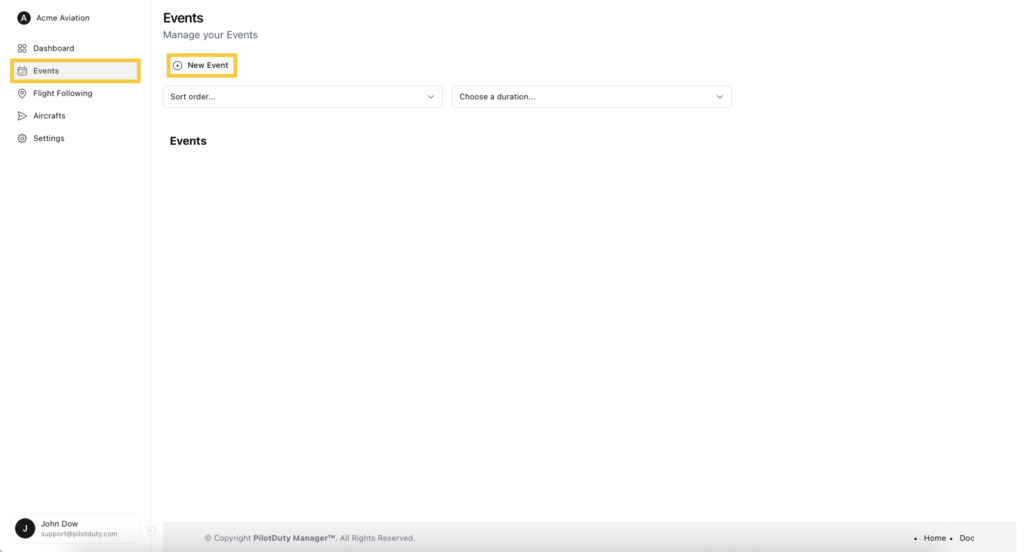
Create Events

Step 2: Choose the Event Type #

In the “Create Event” modal:

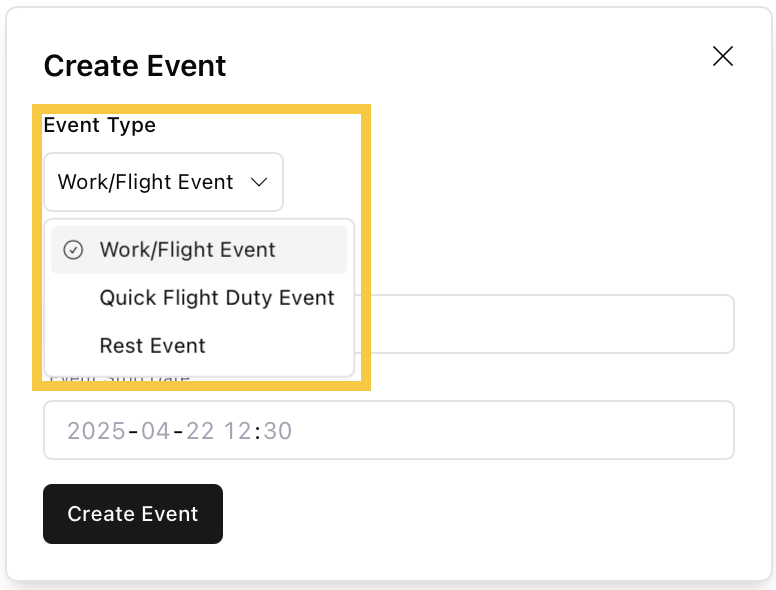
Click the Event Type dropdown menu.

Choose one of the following options:

  • Work/Flight Event (Default)
  • Quick Flight Duty Event
  • Rest Event
Create Event Modal Dropdown

Step 3: Set the Event Time #

  1. Select the Event Start Date and Event Stop Date.
  2. Click Create Event to proceed.

Once created, the event will appear in the list.
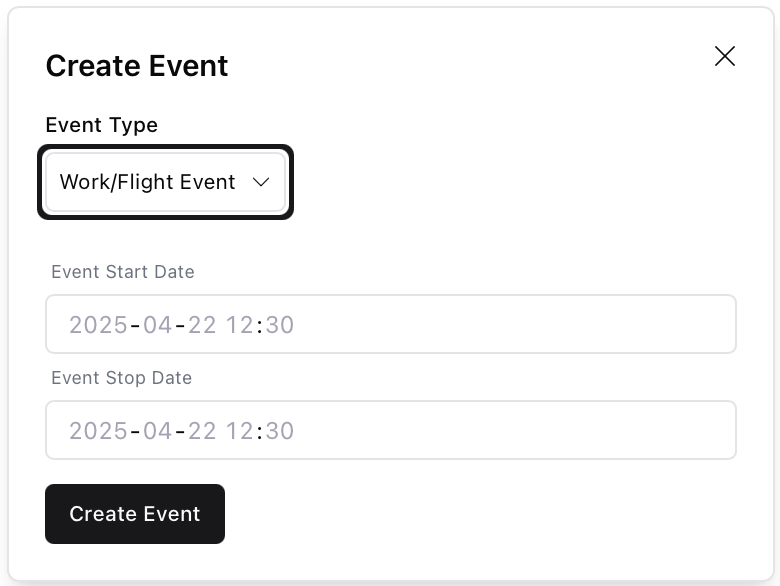
Create Event Modal Empty

Step 4: Edit the Event and Choose Type (Optional) #

  1. Click on the event entry.
  2. In the “Edit Event” section, you can modify:
    • Event type (e.g., switch between Work, Flight, or Rest)
    • Start and Stop time
    • Remarks

Don’t forget to hit Save after making changes.
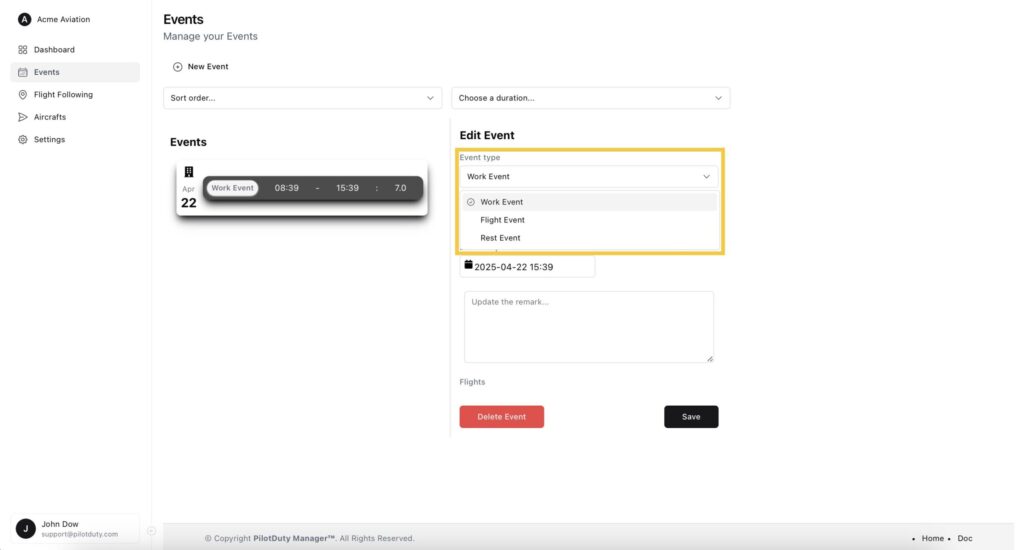
Event With Event Type Dropdown

Step 5: Add a Flight to a Flight Event #

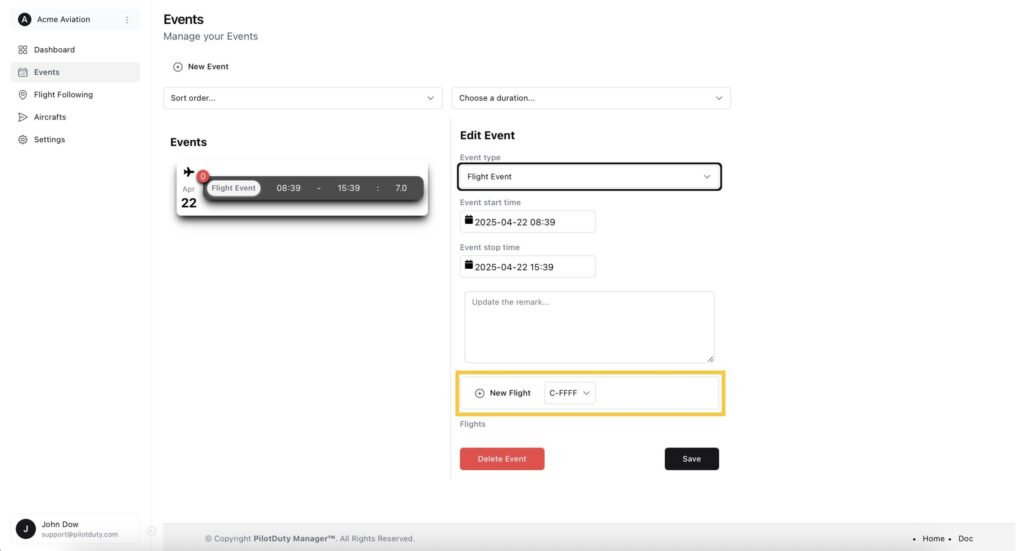
If you selected Flight Event, a new section appears:

  1. Click New Flight and select the aircraft.
Flight Event Empty

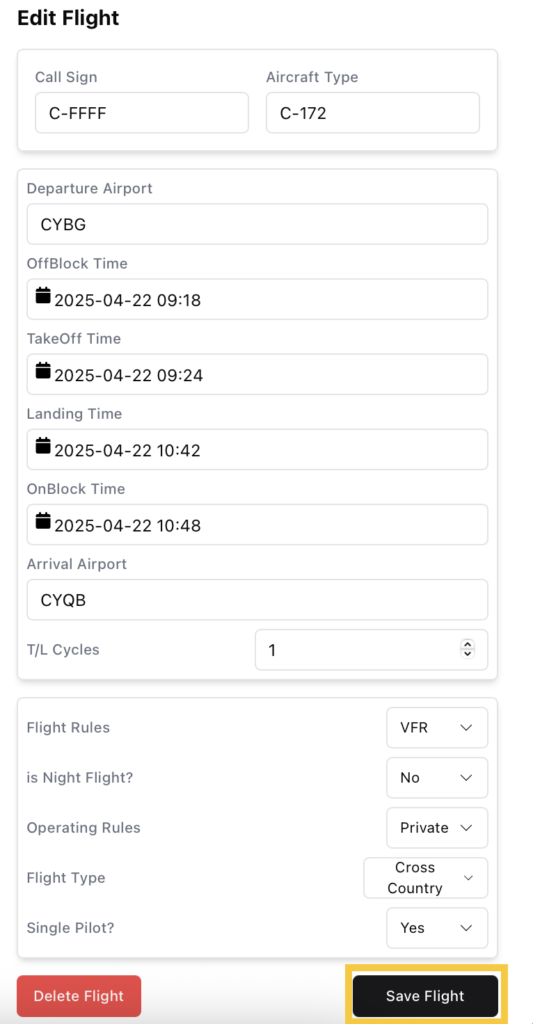
  1. The Edit Flight section opens on the right.
  2. Fill in the required details:
  • Call Sign and Aircraft Type
  • Departure and Arrival Airports
  • OffBlock, Takeoff, Landing, OnBlock times
  • T/L Cycles
  • Flight Rules, Operating Rules, Flight Type, and Single Pilot?

Click Save Flight once done.
Edit Flight Filled

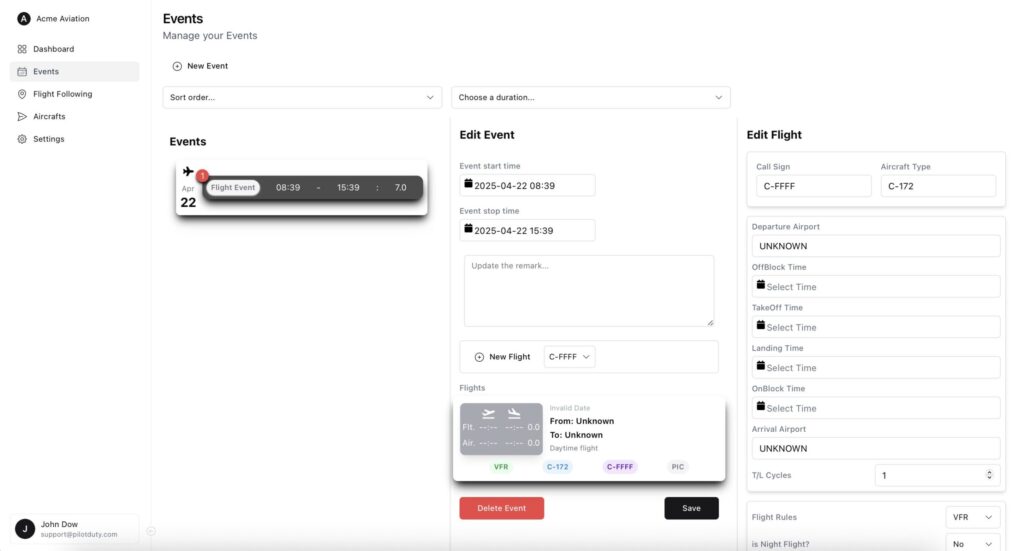
If no flight info is entered, you’ll see a blank placeholder like this:
Flight Event With Empty Flight

Step 6: Sorting and Filtering Events #

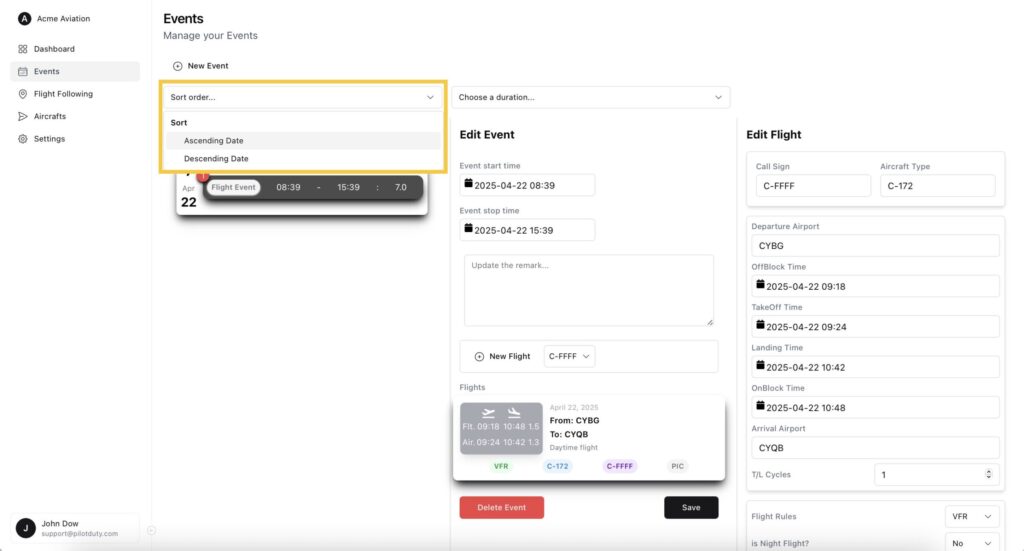
You can filter and sort events by date and duration:

Sort order: Ascending / Descending
Sort DropDown

Duration: All events, last 7/28/90 days
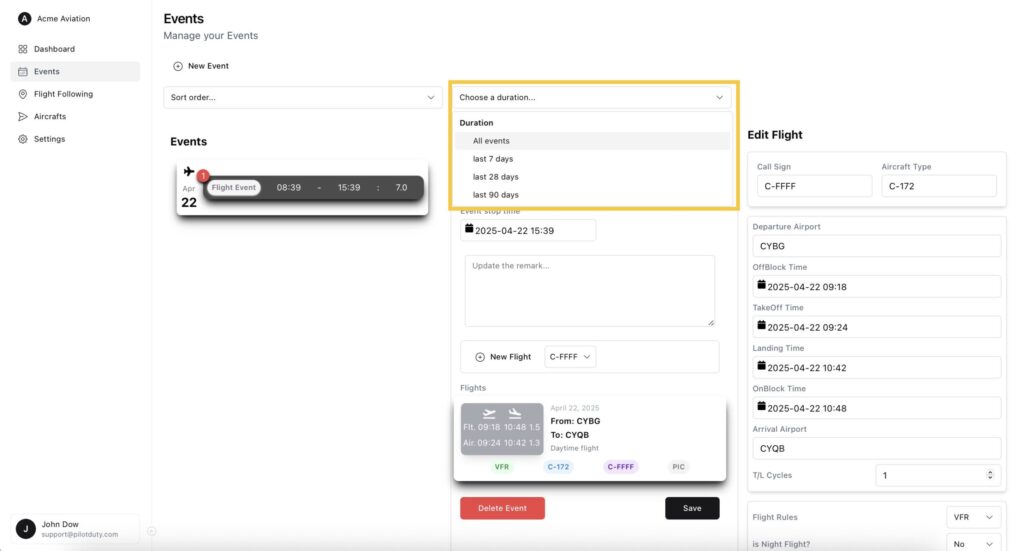
Duration Dropdown

You’ve now successfully created an event and added flight data in PilotDuty Manager.

What are your Feelings

Share This Article :

  • Facebook
  • LinkedIn
Still stuck? How can we help?

How can we help?

Updated on June 12, 2025
Flight Following on PilotDuty ManagerStart a New Inspection Process

Leave a Reply Cancel reply

Your email address will not be published. Required fields are marked *

Table of Contents
  • Step 1: Access the Event Creation Modal
  • Step 2: Choose the Event Type
  • Step 3: Set the Event Time
  • Step 4: Edit the Event and Choose Type (Optional)
  • Step 5: Add a Flight to a Flight Event
  • Step 6: Sorting and Filtering Events

ABOUT PilotDuty


PilotDuty® is the only fully automatic flight logbook for general aviation pilots — featuring iBeacon-based flight tracking, SMS flight following, and aircraft maintenance monitoring. Trusted by aviation professionals across North America.

QUICK LINKS

  • PilotDuty – App
  • PilotDuty Manager
  • Contact Us
  • Shop

CONTACT US

Feel free to contact & reach us !

Address : Mascouche, Qc Canada
Email : support@pilotduty.com
Phone : 1 (888) 969-2594

RESOURCES

  • FAQ
  • Docs
  • Blog
  • Terms Of Use
  • Privacy Policy
  • Refund and Returns Policy
  • Cookie Policy
Copyright © 2026 PilotDuty. Powered by M2D3V